Overlay widgets
Widgets are the gauges, bars, maps and tiles drawn over the video. The preview and the exported video use the same scene, so what you arrange in the editor is what you export.
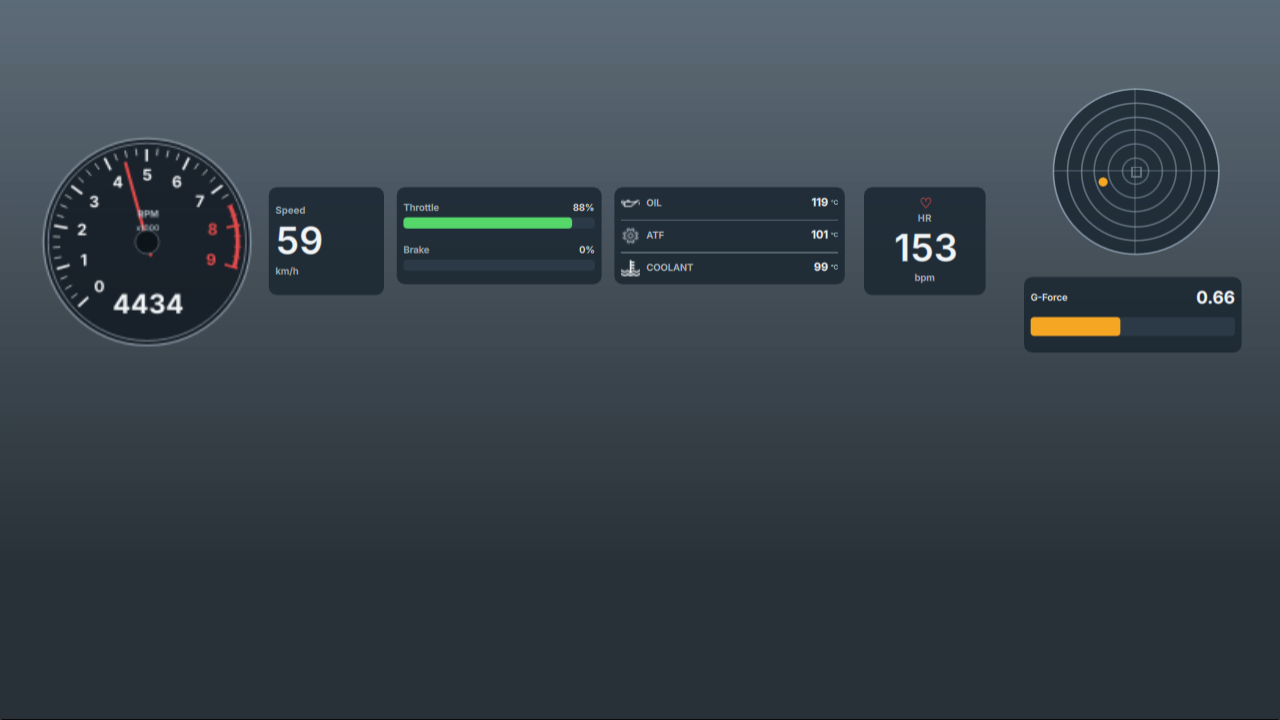
Adding and arranging widgets
- In the left sidebar, open Add widget and click a tile. The widget is added to the scene and selected.
- Drag it into place in the preview, and drag the amber corner handle to resize it.
- Fine-tune it in the Inspector's WIDGET tab.
A scene holds at most 256 widgets. Duplicate (at the bottom of the WIDGET tab) copies the selected widget slightly offset; Delete removes it without confirmation.
A whole arrangement can be stored and reused as a layout template. To build a widget of your own from text, values, bars, lap times and shapes, use New widget… and the widget editor; widgets you save to My widgets appear under Add widget in every project.
How widgets read telemetry
Most widgets have a Source channel selector. Its first entry, Automatic, uses the channel the application recognised for that purpose, such as speed, RPM, throttle, brake, heart rate, steering angle or G. The other entries are the channel names of the loaded file, so you can bind any recorded channel. How channels are recognised is described in Telemetry data.
- Values follow the playhead in time, not in frames. Preview and export look up telemetry at the exact time of each frame.
- Displayed values are lightly smoothed so numbers do not flicker. Recorded data is never changed.
- When there is no value at the current moment (outside the recording, inside a gap, or a channel the file does not have), widgets show an em dash
—, an empty bar or no needle/dot. No other channel is substituted. - A short gap between samples is bridged on screen: the last value is held for up to 0.75 seconds (2 seconds for heart rate) before the widget shows no data.
Widget catalog
The names below are the tiles in Add widget.
Speed
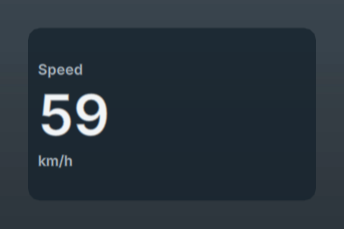
Label, large value and unit on a panel. Automatic source: speed. The value is converted from km/h to mph only when Unit is exactly mph (lower case); any other unit text only changes the label.
Heart rate
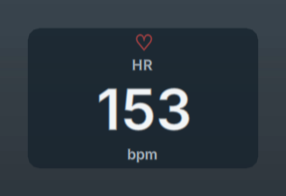
heart_rate-hrm.Heart icon, label, value and unit (default bpm). Heart rate comes from the imported VBO or RCZ recording; there is no separate heart-rate source. Option: Show heart icon.
Steering wheel
A steering wheel that turns with the driver's steering wheel angle, with the angle in whole degrees and the side under it: 90° L, 45° R or 0°. A positive angle is the wheel turned left (anticlockwise as the driver sees it): at +90 the top of the wheel has turned to the left. The red mark on the rim is the top of the wheel. Automatic source: the obd_steering_angle column that BetterDriver 1.12 and newer writes for a gen-1 FR-S, GT86 or BRZ with the CAN adapter (in degrees); for other loggers, the first column whose name contains steer. A recording without such a column hides the widget, without an error. If your logger counts the other way, set Multiplier to -1. Options: Show label, Show angle, the wheel colour and the red mark (Accent colour). The Tech style draws it on the Tech plate like the throttle and brake rows: the label top left, the angle top right and a thin wheel with an amber mark under them; there the wheel colour is the only colour option.
Track map
The outline of the track from the recording's GPS, with the car as a dot, the lap so far as a coloured trail behind it and a dashed tick on the start/finish line. A recording without GPS hides the widget, without an error. Where the GPS has a gap the line stays open instead of bridging it, and while the recording has no position the dot is not shown. Under Extent choose what the map shows:
- Whole track: the whole outline fitted into the widget. It is drawn once; only the dot and the trail move.
- Part of the track, around the car: a window of Window (metres) (100 to 2000, default 300) that follows the car; the road fades out towards the edge. Orientation is North up, or Heading up, where the map turns so the car always drives up the widget (while the car stands still the map stays north up).
Other options: Show label and lap number (the label reads TRACK, with the window size in window mode; the lap number is shown when the recording has timed laps), Show the lap so far (the trail runs from the start of the current lap, or the last 30 s outside a timed lap), Show the start/finish line (needs a start line in the recording or the lap detection), Line color and Trail color (clear the field to return to the style's colours). The Tech style draws it on the Tech plate with a grey outline (bright in window mode) and an amber trail and dot; Classic uses a rounded plate with a light outline and an orange trail. The Tech HUD template has it in the top left corner. An earlier Track widget (removed on 5 October 2026) is not this one: projects that still hold it open without it.
Pedals
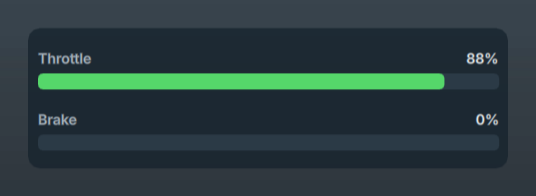
Two rows, throttle and brake, each with a percentage and a fill bar.
| Setting | Meaning |
|---|---|
| Accelerator channel / Brake channel | Channels for each row. Automatic uses the recognised throttle and brake channels. |
| Accelerator label / Brake label | Row labels (default Throttle, Brake). |
| Accelerator min/max, Brake min/max | The values that mean an empty and a full bar (default 0 and 100). |
| Accelerator color / Brake color | Bar colours. |
| Show values, Bar radius | Show the numbers; rounding of the bars. |
If the recording has no brake channel, the brake row shows — and an empty bar. Brake data is never estimated from other channels.
F1 G-Force Radar and G-Force Bar
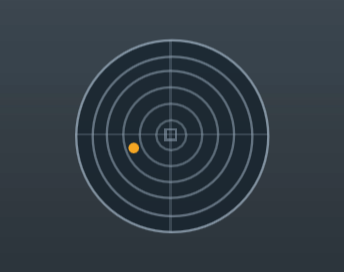
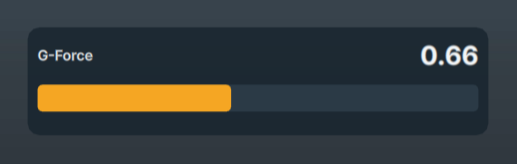
Both use a lateral and a longitudinal channel. Each axis has its own channel selector and an Invert … axis option, which flips only the display, not the data. Both axes must have a value; otherwise the dot is hidden and the value shows —.
- F1 G-Force Radar: a dark circular field with concentric rings. The dot's distance from the centre is the combined G. Settings: Max G (default 1.5), Ring step (default 0.25), Show crosshair, Show center box, Radar background, Dot color, Grid color. The radar draws its own field, so the Appearance and Typography sections are not offered for it; Panel opacity sets the field's opacity.
- G-Force Bar: a horizontal bar filled by combined G ÷ Max G, with a label and value. The number shows the true combined G even when the bar is full. Settings: Max G, Label, Decimals, Bar radius, Show label, Show value, Fill color, Bar background. Combined G does not depend on the sign of either axis, so the bar has no Invert options.
Combined G is √(lateral² + longitudinal²). For RaceChrono data, the calculated G channels from a VBO export give the best result; see RaceChrono G channels.
Tyres
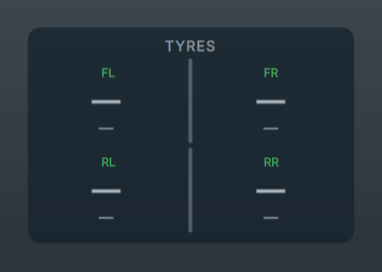
A top-down car with four corners (FL, FR, RL, RR) showing tyre temperature and pressure. Channels are detected from their names (see Tyre channels). To use other channels, choose them per corner in the inspector: Temp FL to Temp RR and Pressure FL to Pressure RR. Automatic keeps the channel found by name. Temperature is shown in °C. Pressure is shown in the chosen Pressure unit, bar or psi, converted from the recorded unit. A dash means that corner has no data at that moment. When no channel is named as a tyre value and none is chosen, the inspector says so in red under the description.
Settings: per-corner temperature and pressure channels, Label, Temperature and Pressure check boxes, label text (default TYRES), Pressure unit, Pressure decimals (0–3, bar only; psi always shows one decimal), Cold below (°C) (blue) and Hot above (°C) (red). Leave the thresholds empty to turn colouring off.
Retro Custom
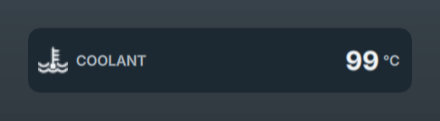
coolant_temp-obd, label COOLANT.A single-row panel: icon, label, value and unit. Labels OIL, ATF and COOLANT get a matching icon automatically. It has no automatic channel: choose a Source channel first. If Label is empty, the channel name is shown. Extra settings: Panel color, Value color, Label color, Text when channel is unavailable, Icon (any symbol of up to four characters shown before the label; it replaces the automatic icon) and Position in a stack. To stack rows into one plate, as OIL, ATF and COOLANT in the templates, place them directly above each other and set the top row to Top of a stack, the bottom row to Bottom of a stack and any rows between to Middle of a stack; the inner corners become square. Middle and bottom rows offer Divider line above. The widget uses its own panel and text colours, so Background color, Primary text, Secondary text and Weight are not offered for it.
Current lap time
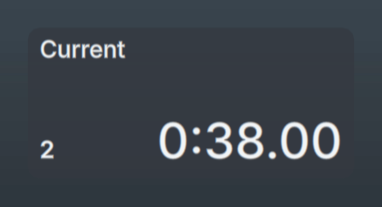
The running time of the current lap and its lap number. It shows READY before the first start-line crossing. It needs lap timing, which requires a start/finish gate in the telemetry and usable GPS (see How laps are found). Label sets the heading (default Current) and Lap time decimals (1, 2 or 3) the precision. Primary accent colours the final time of a finished hotlap.
Delta to the best lap
Tick Show delta to best lap to add a live gap in the top-right corner of the tile: how far this lap is ahead of or behind the best completed lap at the same point of the track, for example -0.34 or +0.52. It is green when the lap is ahead (zero or negative) and orange when it is behind. It is off by default, appears once a lap has been completed, and is hidden in hotlap mode. In the Tech style it sits at the bottom right.
Hotlap mode
On the Current lap time tile, Show one lap only (hotlap) makes the tile show 0:00 until the chosen lap starts, count during that lap, and then keep its final time. Choose the lap from the list (Best lap of this recording or a specific lap) or click Use the lap at the playhead. When you then open Export, it starts in Single lap · hotlap mode with the same lap.
Retro RPM
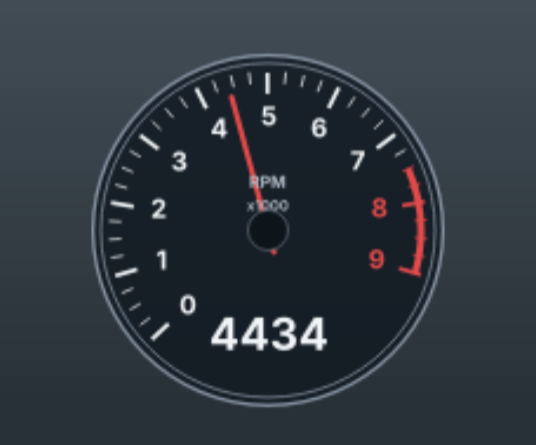
A round analog tachometer with numerals in thousands, a red warning zone, needle and digital value. Settings: Red zone from (RPM) (default 7500), Red zone color, Rim color, Dial color, Needle color, Dial background, Background opacity, plus Font family and Font size for the numerals. The dial draws its own background and shows the RPM as a whole number, so the Appearance section and Unit, Decimals, Prefix, Suffix and Show unit are not offered for it.
A new Retro RPM reads the rpm channel, which VBO files and RaceChrono sessions (from rpm-obd) both provide. If your file has no such channel, the widget shows no data; select another channel in Source channel. A stored channel that the loaded file lacks still appears in the selector, so it never shows Automatic for a different stored name.
Camera box
A camera box is a picture-in-picture box that you place yourself. It needs an additional video (see Picture in picture). Add one with Add widget > Camera box: it takes the first camera that has no box yet and starts in the frame corner that the other widgets cover least. Drag and resize it like any widget; the box is the widget's rectangle.
- Camera chooses the main video or an additional video.
- Picture: Fill the box (crop) (the default) crops the picture to the box; Fit the whole picture keeps all of it and shrinks the box to the picture's shape.
- Border draws a frame of 0 to 12 pixels (at 1080p) in the colour you choose.
The box shows while its camera is not on air and is empty while that camera fills the frame. A camera without a box widget has no box. The box is drawn under the overlay, so widgets draw over it; the widget itself draws nothing. The inspector does not offer rotation, scale or opacity for it, and a hidden widget draws no box. As soon as the scene has a camera box widget (hidden ones count; delete them to use the corner options again), the corner, size, margin, border and camera options of Picture in picture are not used (the DATA tab says so); switching Show the other cameras in boxes off hides every box.
Styles: Classic and Tech
Every widget except a designed widget has a Style setting in the Identity section of the WIDGET tab. Classic is the look shown above and the default, so projects saved before 5 October 2026 look as they did. Tech is the bottom-strip look chosen on 5 October 2026: dark plates with two cut corners and a short amber tab, the Chakra Petch font with fixed-width digits, and the colours below. The Tech HUD template applies it to a whole layout.
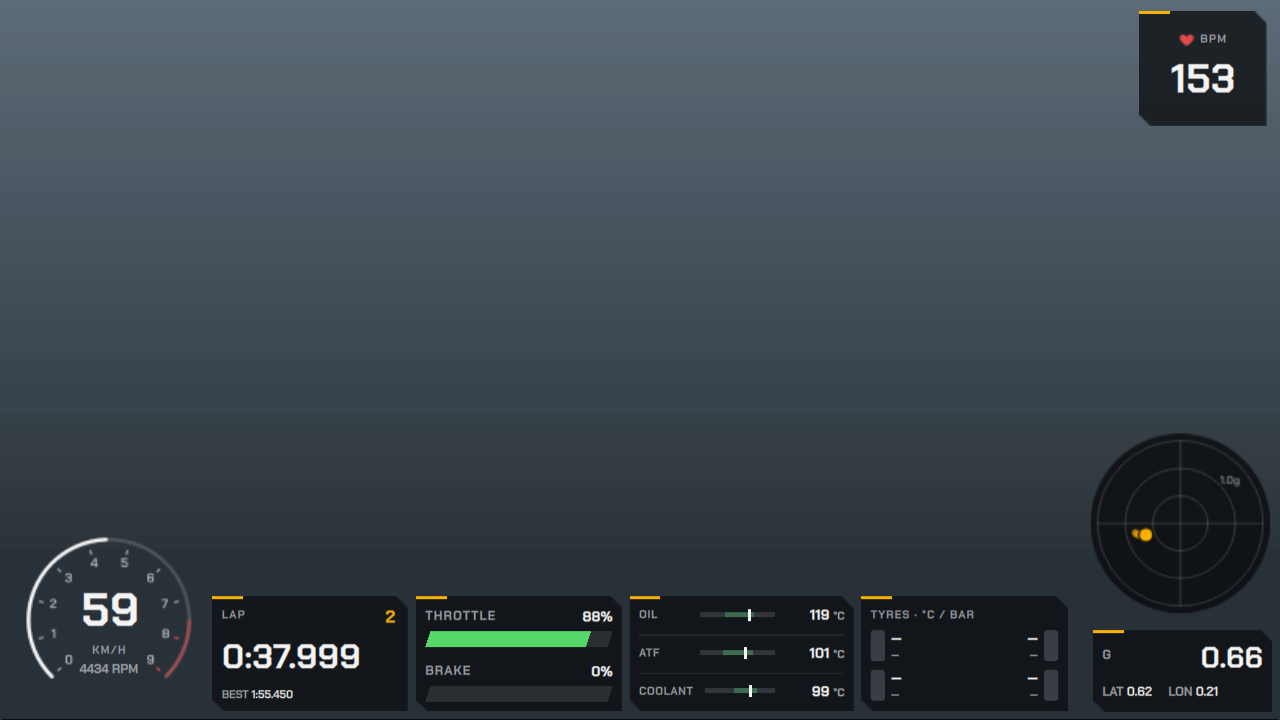
| Widget | In the Tech style |
|---|---|
| Retro RPM | A thin 270° arc with the scale in thousands and a red zone from Red zone from (RPM) (default 7500), with the speed in the middle and the RPM value under it. Show speed inside the gauge and its channel (default speed) can be changed; the speed is shown in km/h. |
| Speed | Label, large value and unit on a plate. |
| Pedals | Throttle and brake as slanted horizontal bars with percentages. |
| Current lap time | Lap number in amber, the running time, and BEST with the best completed lap so far (Show best lap). Hotlap mode works as in Classic. |
| Heart rate | Heart icon, BPM and the value. Show heart-rate zones adds five bars, lit from 50, 60, 70, 80 and 90 % of Maximum (set it to your own maximum heart rate; the default is 220). Off by default. |
| Track map | Label top left, lap number top right, a grey outline with an amber trail and dot (see Track map). |
| Retro Custom | One row: label, value and unit. Show range bar draws a bar from Minimum to Maximum with a pin at the value and the range from Normal from to Normal to in green. At or above Warning at the row turns red (0 turns the warning off). Stacked rows (OIL, ATF, COOLANT) form one plate. |
| Tyres | A block per tyre coloured by temperature: blue below Cold below (default 60 °C), green to amber in the working range, red above Hot above (default 100 °C), with temperature and pressure beside it. |
| F1 G-Force Radar | Rings every Ring step, the amber dot and a fading trail of the last Trail (s) seconds (0 to 5, default 1; 0 turns it off). The trail is read from the recording, so preview and export show the same trail. |
| G-Force Bar | A readout: combined G, then lateral (LAT) and longitudinal (LON) G. |
The Tech style sets its own font, colours, corners and padding, so the WIDGET tab hides Font family, Weight, the scales, the border and corner settings and the text and accent colours while a widget is in Tech; Background panel and Panel opacity still apply, and the radar adds Show ring label (1.0g). Missing data shows a dash, as in Classic.
Removed widgets
On 5 October 2026 the widget list was reduced to the widgets above. These types were removed: RPM, G-Force, Track, Custom, Arc gauge, Dial gauge, Data strip, Best lap time, Lap delta, Best-lap speed, Current speed, Speed delta, Retro Grand Prix, Retro gear, Retro pedal, Retro speed, Nameplate and Logo.
A project, custom template or My widgets entry that still contains one of them opens normally without those widgets. When a project leaves widgets out, the status bar says how many. Saving the project then stores it without them. Rebuild a removed widget with the widget editor if you need it.
Widgets from a newer version
A project saved by a newer version of FlappedEar Overlays may contain a widget type this version does not know. The project opens; those widgets are not shown or exported, and the status bar says how many are kept. Saving the project writes them back unchanged, in their place, so the newer version still finds them. Applying a template replaces the whole scene, these widgets included.
Widget settings (WIDGET tab)
With a widget selected, the WIDGET tab shows the following sections. The tab offers only the settings that change the selected widget in its current style, so some sections and controls appear only for the widget types where they apply.
| Section | Settings |
|---|---|
| Header | Widget type, Visible, and Font size (see below). |
| Identity | Layer name (shown in the Layers list), Title and Show title (a small heading at the top of the widget), Style (Classic or Tech). |
| Telemetry & format | Source channel, Label, Unit, Decimals (0–6), Multiplier, Value offset, Prefix, Suffix, Minimum, Maximum, Show unit, Clamp. |
| Type-specific | The settings listed for each widget in the catalog. |
| Geometry | X, Y, W, H, Scale (0.25–3×), Rotation (−180° to 180°), Opacity. |
| Typography | Font family (typed name, default Helvetica Neue; the application also includes Sora, JetBrains Mono and Chakra Petch, which look the same on every computer), Weight (400–800), Value scale, Label scale. |
| Appearance | Background panel, Background color, Panel opacity, Border, Border color, Border width, Border opacity, Corner radius, Padding, Primary text, Secondary text, Primary accent. |
| Actions | Duplicate, Delete. |
Value formatting
For widgets that use the Telemetry & format section, the displayed number is:
value × Multiplier + Value offset, limited to Minimum…Maximum when Clamp is on, then written as Prefix + number with Decimals + Suffix, followed by Unit when Show unit is on.
Use Multiplier and Value offset for unit conversions, for example multiplier 1.8 and offset 32 to show a °C channel in °F. The Unit field is only a label (the one exception is mph on the Speed widget). There is no global unit setting.
For Retro RPM, Minimum and Maximum also define the dial range.
Position, size, scale and rotation
- X and Y are the top-left corner and W and H the size, all as fractions of the video frame (0 to 1). A layout therefore keeps its proportions at every export resolution.
- Scale enlarges the widget box and its contents together. The widget is kept inside the frame, so the maximum scale depends on its size.
- Rotation turns the widget around its centre. Selecting and dragging follow the rotated shape.
Font size
Auto (the value 0) lets the widget size its text from its box. A number from 1 to 200 sets the main text size in pixels on a 1920 × 1080 frame; it is scaled proportionally for other frame sizes, so preview and every export resolution look the same. The control is offered on Speed, Heart rate, Retro Custom, Retro RPM, G-Force Bar and Tyres in the Classic style, and on Speed, Heart rate and Retro Custom in the Tech style.
Colours
Each colour has a swatch that opens the system colour picker and a text field for a hex value such as #55d76a. An invalid value reverts to the default.
Cues: timed appearances
By default a widget is visible for the whole video. Cues make it appear only at chosen times, like broadcast graphics.
- Select the widget and open the CUES tab.
- Move the playhead to where the widget should appear and click Add cue at …. A 5-second cue with a fade is created.
- Adjust Start (s), Duration (s), Fade in (s), Fade out (s) and Entrance (Fade, Pop or Slide up). Move start to playhead moves the cue to the current time.
A widget with at least one cue is hidden outside its cues. Cues may overlap. Remove deletes one cue and Clear all cues deletes all of them. Cues are saved in projects and templates. Each widget can have up to 256 cues, and a scene up to 4,096 cues in total.