Synchronizing video and telemetry
The camera and the data logger start recording at different moments. Synchronization tells the application which telemetry moment belongs to each video frame.
How timing works
All timing is based on time, never on frame numbers. For every video time the telemetry time is:
telemetry time = video time × Time scale + Telemetry offset- Telemetry offset in seconds. A positive offset means the telemetry recording started earlier than the video: at video time 0 the overlay shows telemetry from offset seconds into the recording.
- Time scale corrects clock drift between camera and logger. Leave it at
1unless you have measured drift.
When the result falls outside the recording, widgets show no data. In an event, every run keeps its own synchronization.
Automatic synchronization (GoPro GPS)
If your video comes from a GoPro with GPS enabled, the application can find the offset by matching the camera's GPS speed against the speed channel of your telemetry.
- Load the GoPro video and the telemetry file.
- In the Inspector, open the DATA tab.
- Under Automatic synchronization, click Auto Sync GoPro GPS. The button reads Matching GPS speed… while it works in the background.
- Read the result card.
The result card shows the Offset, the Correlation of the two speed traces and a Confidence percentage:
| Confidence | Card heading | What happens |
|---|---|---|
| 75 % or more | SYNC APPLIED | The offset is applied automatically. |
| 45 % to 75 % | POSSIBLE SYNCHRONIZATION FOUND | Review this candidate before changing timing. Nothing changes until you click Apply. |
| Below 45 % | POSSIBLE SYNCHRONIZATION FOUND | Low confidence: current timing was not changed. You can still Apply or Ignore it. |
Confidence is lower when another offset matches almost as well, whether it is a lap away or only a few seconds away, so such a result is never applied automatically.
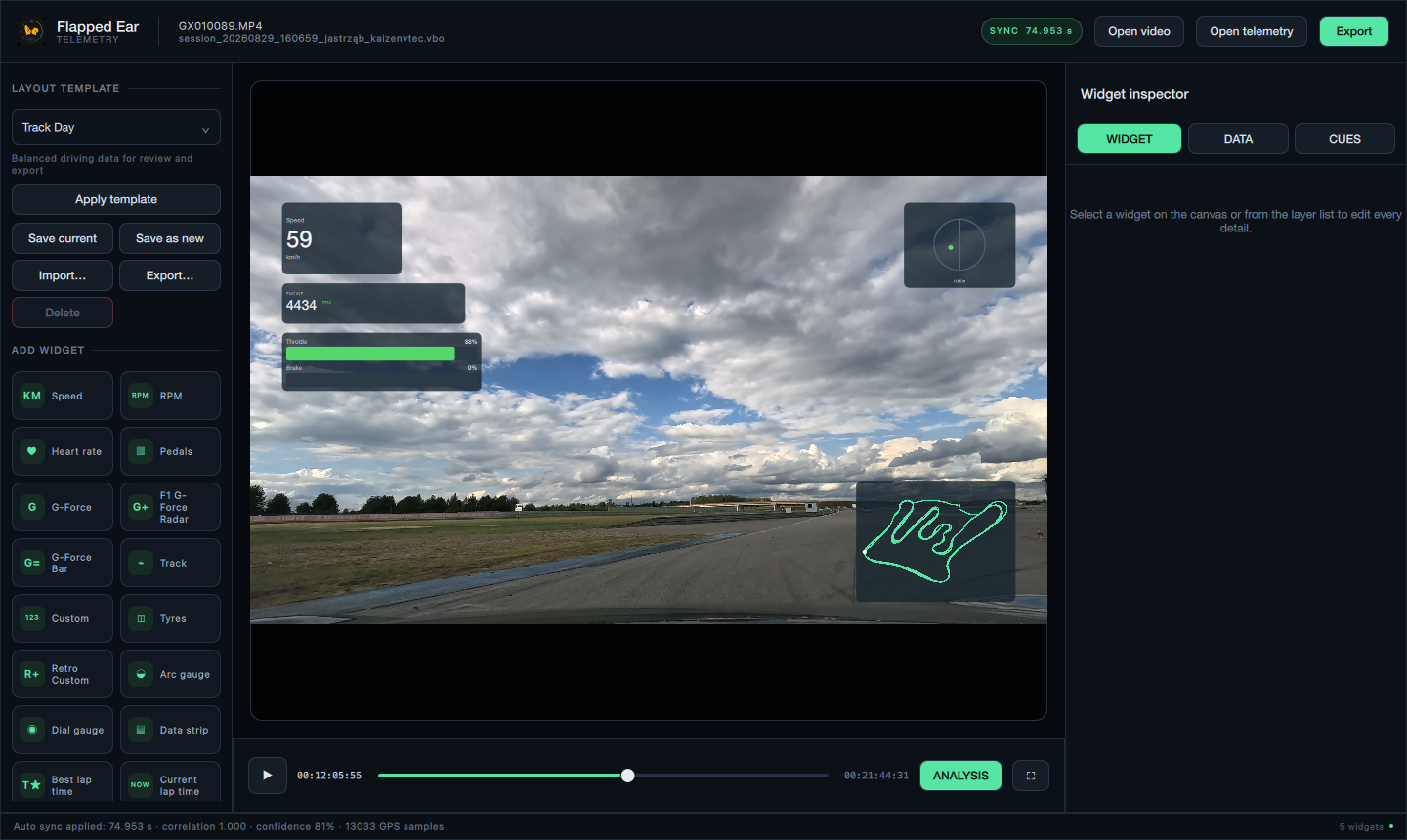
Confidence considers how well the speed traces match, whether the best match is clearly better than any other, and how long the overlap is. With less than 20 seconds of overlap, a result is never applied automatically.
Before applying a medium or low result, scrub to a recognisable moment (a stop, a hard braking point, the start line) and check that the overlay agrees with the picture.
Requirements and limits
- The video must contain GoPro GPMF GPS data, and the telemetry must have a speed channel. Only GPS samples with a 2-D or 3-D fix are used; where the camera recorded no fix information they are left out. Each source needs at least 20 GPS speed samples. With less than 20 seconds of overlap a result can be shown but is never applied automatically.
- ffprobe (part of FFmpeg) must be installed; see Installing FFmpeg.
- Automatic synchronization sets only the offset. Time scale stays
1. - For a chaptered GoPro recording, only the first chapter's GPS is used.
- The GoPro GPS is used only for synchronization. It is not available as a telemetry channel for widgets.
- If the source changes, or you edit the timing manually while the search runs, its result is discarded. A failed or cancelled search never changes the existing timing.
Typical messages:
| Message | Meaning |
|---|---|
| Open both a GoPro video and telemetry before auto sync. | One of the two sources is missing. |
| No GoPro GPMF telemetry track was found. | The video has no GoPro metadata (another camera, GPS off, or re-encoded footage). Use manual timing. |
| The GPMF track contains no usable GPS speed samples. | The camera had no GPS fix during the recording. |
| The GPMF track's GPS has no fix information (GPSF), so its samples are not used. | The camera did not record how good its GPS fix was, so its positions and speeds are not trusted. Use manual timing. |
| GPS speed is not available in both telemetry sources. | The telemetry file has no recognised speed channel. |
| ffprobe was not found. Install FFmpeg to read GoPro telemetry. | See Installing FFmpeg. |
Manual timing
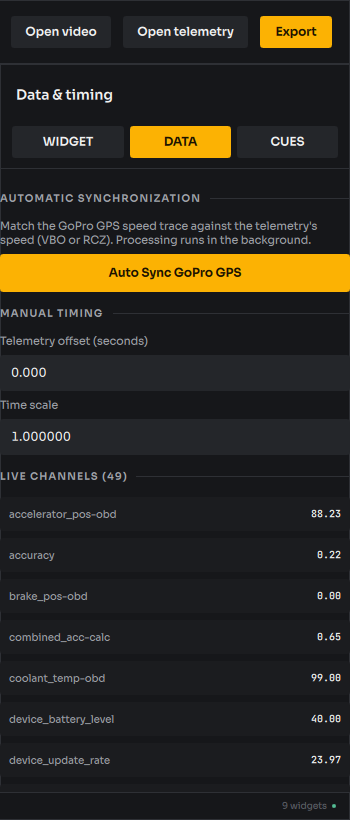
Under Manual timing in the DATA tab:
- Telemetry offset (seconds): type a value with up to millisecond precision and press Return.
- Time scale: must be a positive number. Invalid input is ignored.
A practical method:
- Find a clear event in the video, such as the moment the car starts moving or brakes hard, and note the video time.
- Watch the Live channels list in the DATA tab (each channel's value at the playhead) or the overlay while adjusting the offset until the speed or G reaction lines up with the picture.
- Check a second event later in the video. If the second event is off by a growing amount, adjust Time scale.
Editing manual timing cancels a running automatic search. The header shows the current offset as SYNC x.xxx s when it is not zero.
Additional videos
A run can have up to three videos besides the main one, such as a helmet camera without GPS. They are listed under Additional videos in the DATA tab, below Manual timing. Each has its own offset and time scale. Automatic synchronization uses only the main video's GoPro GPS, so additional videos are aligned by hand.
- Click Add video… and choose an MP4 or MOV file. It cannot be the main video or a video the run already has. A new video starts with the main video's timing and is named after its file. You can rename it in the field at the top of its card.
- Click Align… on its card. A small player shows this video at the moment the main video is showing, while Follow the main video is ticked.
- Pause the main video on a moment both cameras show, such as a flash, crossing a timing line, or the car leaving the pit box.
- Move the small player to the same moment with its slider or with −1 s, −1 frame, +1 frame and +1 s, then click Align here. The offset is set so that both moments are the same telemetry time. The time scale is not changed.
- Check a second moment later in the run. If it drifts, adjust Time scale on the card and align again.
When a project is opened, each additional video is checked against the file it was saved with:
- A file that is not found is kept in the project. Click Locate… to choose its new location.
- A file that has changed is kept but marked as changed. Locate the original, or remove it and add the new file.
- Locate… does not accept a different video.
Layout in export chooses how export places the videos. The choice is saved with the run.
- Picture in picture: the main video fills the frame. Each additional video sits in a small box down the right edge, from the top.
- Side by side: the main video is in the left half. The additional videos share the right half, one above the other. Each keeps its shape, with black around it.
Widgets are drawn on top of every video, so move any that cover an additional video. An additional video shows only while it has frames; before it starts and after it ends, the main video shows through. The preview shows the additional videos in the same places, playing with the main video, so you can check the layout and the timing before you export.
Picture in picture
With Picture in picture chosen, the Picture in picture group under Layout in export shapes the boxes. The settings are saved with the run and apply to the preview and to export.
- Show the other cameras in boxes switches the boxes on or off at any time. With them off, only the camera on air is seen.
- Corner puts the boxes in the top right (the default), top left, bottom right or bottom left. They stack away from that corner.
- Box size (10 to 50 % of the frame) and Margin (0 to 10 %) set how big the boxes are and how far from the edge. Boxes that would not fit are made smaller so they stay inside the frame.
- Border draws a frame of 0 to 12 pixels (at 1080p) around each box, in the Border colour you type as
#RRGGBB. - Cameras with a box chooses which cameras get a box (at most four). All cameras off air goes back to the default.
To place a box by hand, add a Camera box widget for each camera. While the scene has one, the options above are not used.
Switching cameras
Like a broadcast, a run can cut between its cameras. The Camera switching group lists the main video and each additional video. The camera on air fills the frame; the other cameras are in boxes. Until the first cut, the main video is on air.
- Align every additional video first (see above): a cut only makes sense when the cameras show the same moment.
- Play the main video, or move the playhead. Click Cut to … on a camera, or press 1 to 4 for the first to fourth camera in the list. The camera is on air from the playhead on.
- Each cut appears in the list with its time on the main video's timeline in seconds. Edit the time, choose another camera, or click ✕ to remove the cut. Remove all cuts puts the main video back on air throughout.
- Choose the Transition: Hard cut (the default) changes on the exact frame; Crossfade fades the new camera in over the chosen number of seconds (0.1 to 2).
If the camera on air has no frames at the moment (before it starts or after it ends), the main video shows instead, in the preview and in the export. Removing an additional video removes its cuts. Cutting works with Picture in picture only; Side by side keeps its fixed layout. Audio always comes from the main video.