The editor window
The editor is where you load a video and a telemetry file, arrange overlay widgets on the picture, set timing and export the result.
Welcome screen
When no project, video or event is open, the application shows the Welcome screen, headed Your track day, on video. Its three cards build an overlay project:
- 1 · Video clip: Choose video picks an MP4 or MOV file.
- 2 · Telemetry: Choose telemetry picks a VBO or RCZ file. This step is optional at this point.
- Saved project: Open project… resumes a saved
.fetproject.
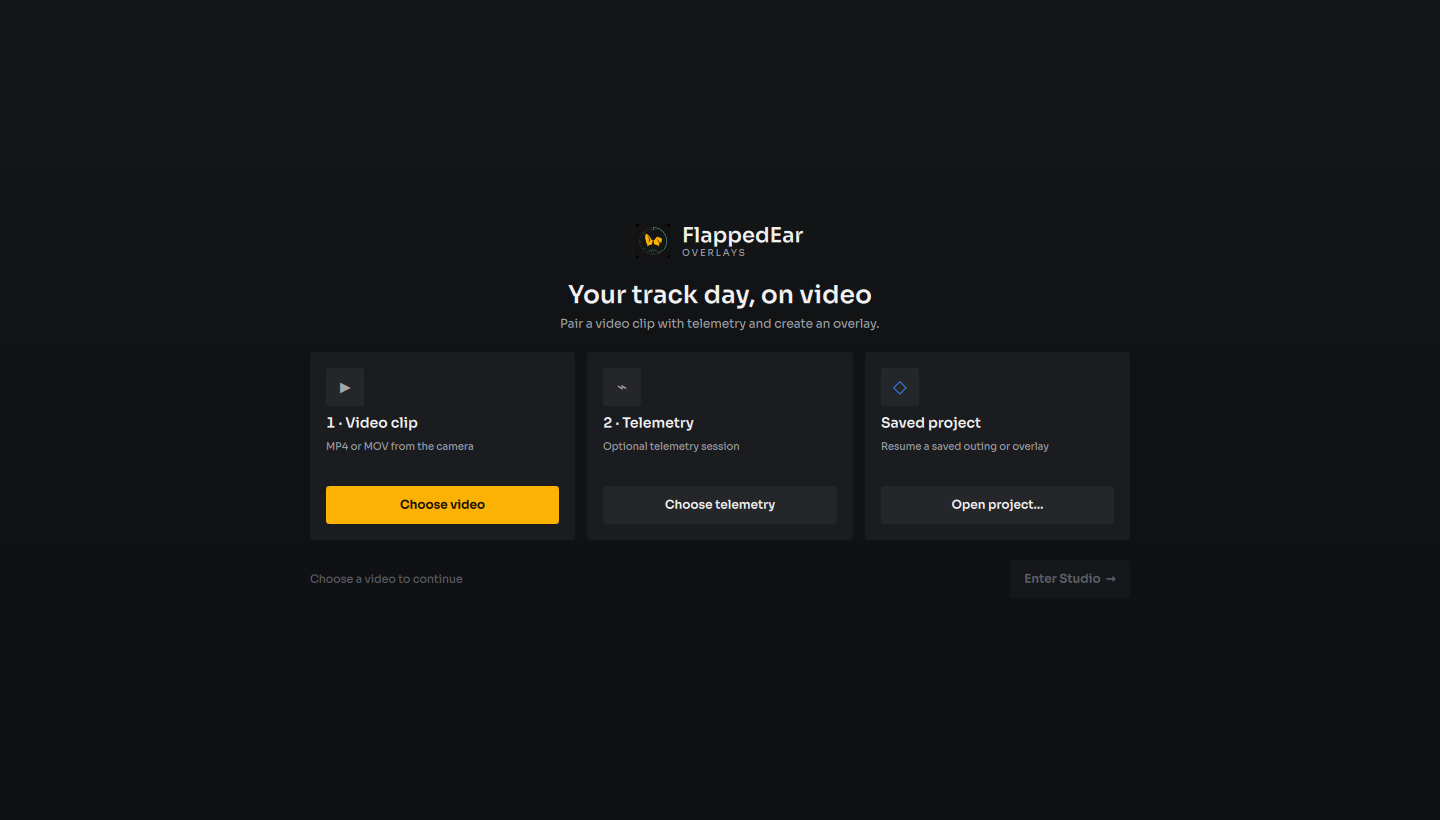
Enter Studio → becomes available once a video is chosen and opens the editor. You can return to this screen with File › Welcome.
Window layout
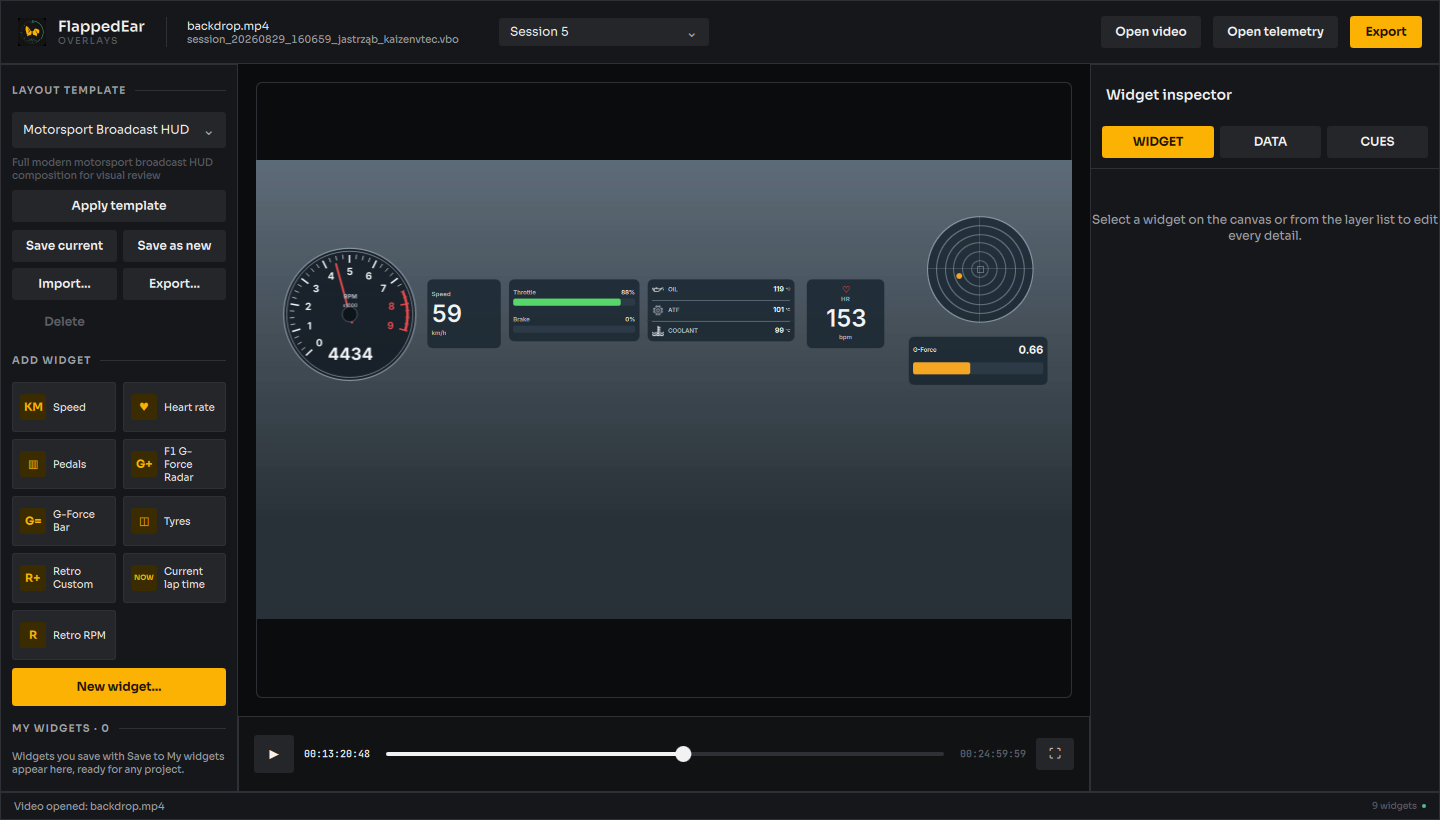
The window cannot be made smaller than 1180 × 720 pixels; it opens at 1440 × 900 the first time and remembers its position and size afterwards. From top to bottom and left to right it contains:
| Area | Contents |
|---|---|
| Header bar | Logo, current video file name (or No video selected), current telemetry file name (or No telemetry selected), in a track-day project a run picker that chooses the run shown in the editor (see Track days), a SYNC x.xxx s pill when a non-zero timing offset is set, and the buttons Open video, Open telemetry, Export and, when a BetterDriver recording is open, BetterDriver video (found/total). When a project's source is missing or does not match, a … missing · Locate… or … mismatch · Locate… button appears here. |
| Left sidebar | Layout template, Add widget and Layers sections, in one vertical scroll area. |
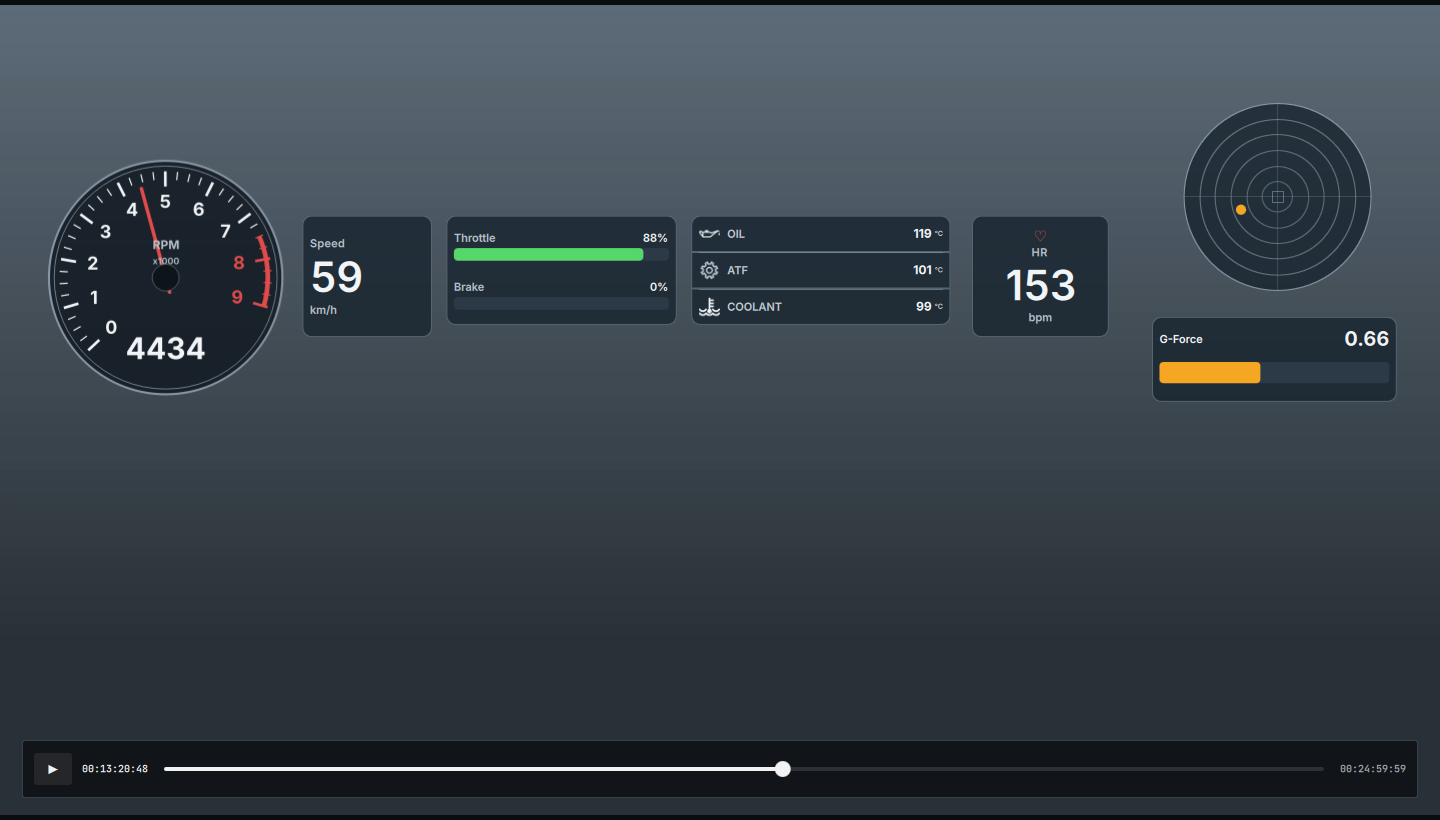
| Preview | The video, letter-boxed to its display size, with the overlay drawn on top. |
| Right sidebar | The Inspector, with the tabs WIDGET, DATA and CUES. |
| Transport bar | Play/pause, current timecode, timeline slider, end timecode and the full-screen (⛶) button. |
| Status bar | The latest status message, the widget count and a dot that turns green when both video and telemetry are ready. |
At the minimum window size every sidebar control is still reachable by scrolling the sidebar.
Menus
File
| Item | What it does |
|---|---|
| New Project | Starts a new project with the default Motorsport Broadcast HUD layout. Asks to save first if there are unsaved changes. |
| Welcome | Shows the Welcome screen. |
| Open Project… | Opens a .fetproject file. |
| Save Project | Saves the project. A project that was never saved opens Save As instead. |
| Save Project As… | Saves under a new name. .fetproject is added if missing. |
| Export… | Opens the Export dialog. Available only when both a video and telemetry are loaded. |
| Open Video… | Opens one or more video files. See Importing video. |
| Open telemetry… | Opens one VBO or RCZ file. |
| Quit | Quits. Asks first if an export is running or there are unsaved changes. |
Widget
| Item | What it does |
|---|---|
| New Widget… | Adds a designed widget and opens the widget editor. |
| Edit Widget Design… | Opens the selected designed widget in the widget editor. |
| Save Widget to My Widgets | Keeps the selected widget in My widgets, or updates it there if it came from My widgets. |
| Import Widget… | Adds a .fetwidget file to My widgets. |
View
- Enter Full Screen / Exit Full Screen: full-screen preview.
- Keyboard Shortcuts: a short reminder of the main shortcuts. The complete list is on Keyboard shortcuts.
Help
About FlappedEar Overlays shows a short description of the application.
Working in the preview
With no video loaded, the preview shows Open an MP4 or MOV to start building the overlay and a Choose video button. Drag-and-drop of files is not supported; use the button or the File menu.
Once a video is ready, the overlay widgets are drawn on top of it and can be edited directly:
- Click a widget to select it. Shift-click adds it to, or removes it from, the selection.
- Drag a widget to move it. It stays inside the picture. Dragging a grouped widget moves the whole group.
- Drag the amber handle at the bottom-right corner of the selected widget to resize it.
- Click empty space to clear the selection.
- Double-click a widget or the picture to toggle full screen.
If the video cannot be decoded, the preview shows Video playback failed with the reason.
Playback and the timeline
Timecodes are shown as SMPTE HH:MM:SS:FF (hours, minutes, seconds, frames; non-drop-frame). The end timecode is the last real frame of the video, and playback stops on that frame.
Use the play/pause button or Space, drag the slider, or use the arrow keys to seek (see Keyboard shortcuts). If the selected widget has cues, amber marks above the slider show where they are.
Layers and groups
The Layers · N section lists every widget in the scene. Each row shows a marker (● selected, ◆ grouped, ○ other), the layer name and an eye button that hides or shows the widget. Hidden layers are dimmed and are not exported.
- Click a row to select that layer (and the rest of its group). Shift-click to add or remove it from a multi-selection.
- Group (⌘G) joins two or more selected layers so they move together.
- Ungroup (⇧⌘G) separates the group of the selected layer.
- Delete or Backspace removes the selected layers. There is no confirmation.
The editor has no undo/redo, no layer locking and no control for stacking order. Save the project before making large changes you might want to reverse.
The Inspector
The right sidebar has three tabs:
- WIDGET: every setting of the selected widget. See Widget settings.
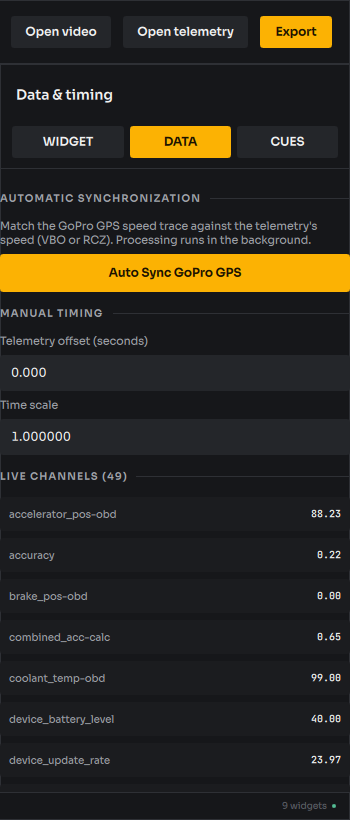
- DATA: timing between video and telemetry, and the live value of every telemetry channel at the playhead. See Synchronizing video and telemetry.
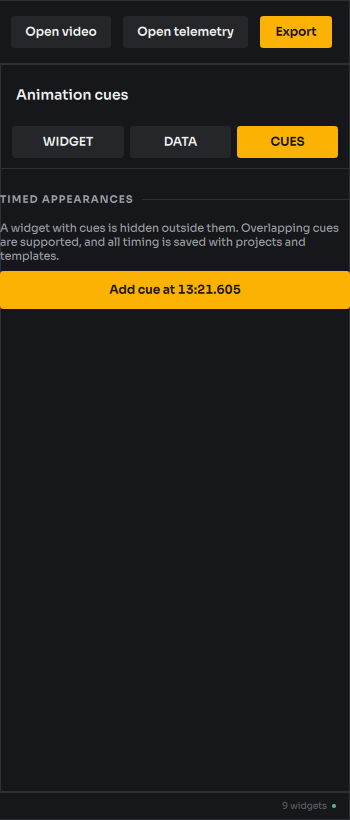
- CUES: timed appearances of the selected widget. See Cues.
Full-screen preview
Enter full screen from View › Enter Full Screen, the ⛶ button, the system full-screen shortcut or by double-clicking the preview. The video fills the screen and a floating bar provides play/pause, timecode and a scrub slider. During playback the bar hides after about 2.6 seconds and returns when you move the mouse or press a key. Esc leaves full screen.
Status bar messages
Most actions report their result in the status bar, for example Telemetry opened: N samples, M numeric channels. or Project saved: name. If automatic recovery data cannot be written, the status bar shows a red warning with a SAVE button; see Recovery.