Exporting video
Export renders the overlay onto your video and writes an H.265 (HEVC) MP4 file. The overlay is drawn by the same scene you see in the preview.
Before you export
- A video and a telemetry recording must both be loaded. Export is disabled otherwise.
- FFmpeg and ffprobe must be installed; see Installing FFmpeg.
- Check the synchronization at a few points in the video.
- Hidden layers are not exported. Widgets with cues appear only during their cues.
The Export dialog
Open it with the Export button, File › Export… or ⌘E. The dialog is titled Export H.265 / HEVC.
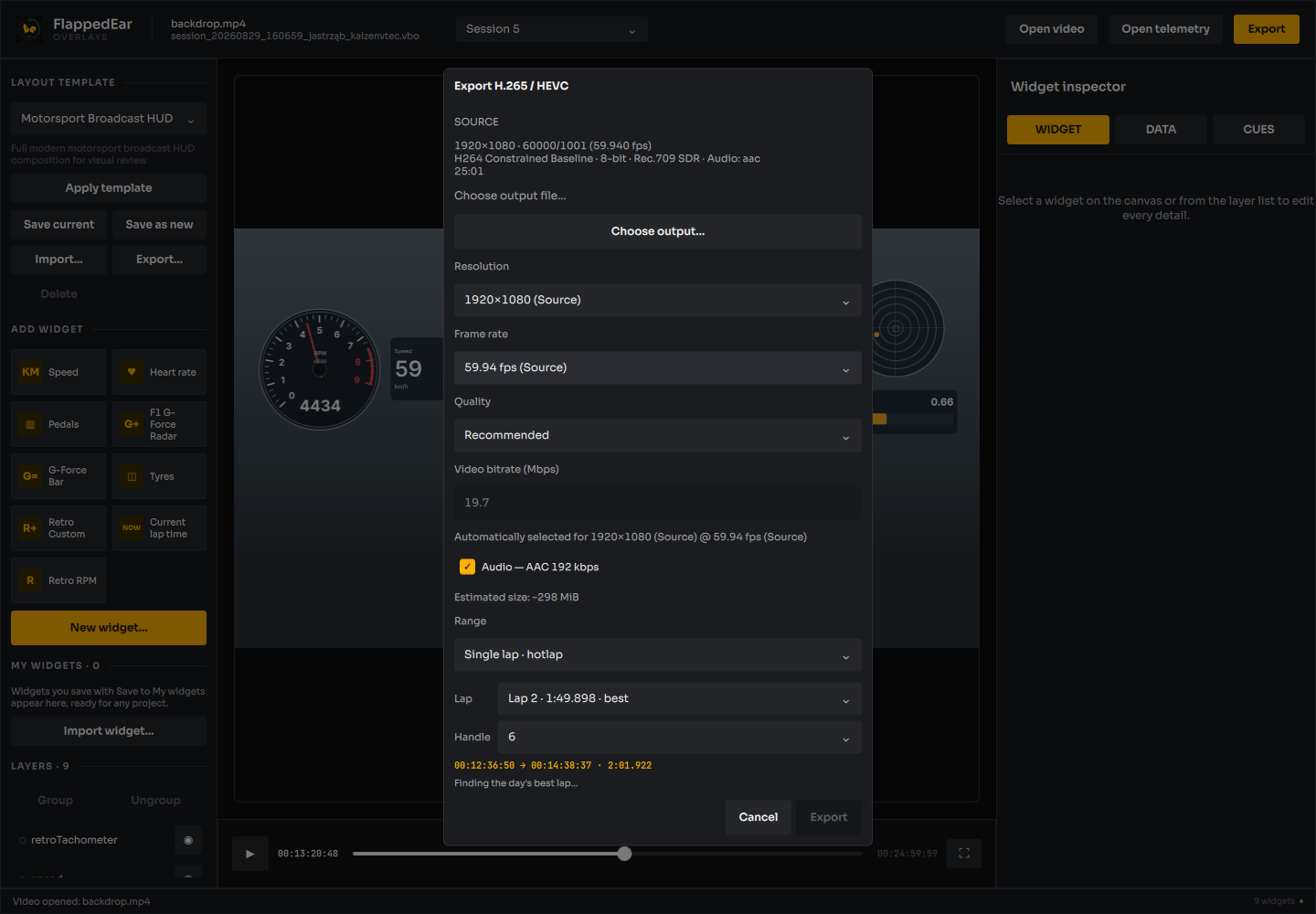
Source
The top of the dialog summarises the source: size, exact frame rate, codec and profile, bit depth, colour (for example Rec.709 SDR), audio and duration. Two notices may appear:
- Variable frame rate source detected. The export is written at a constant frame rate. Telemetry still follows real time.
- HDR/Log preservation is not yet supported. The export will be refused rather than silently converted to SDR.
Output file
Click Choose output… and pick a name ending in .mp4. If the file already exists you are asked Replace existing file?. The existing file is replaced only after the new video has been encoded and has passed validation; until then it is left untouched. The output cannot be the source video or any other file used by the project.
Format options
| Option | Choices |
|---|---|
| Resolution | The source size, marked (Source), plus smaller sizes 3840, 2560, 1920 and 1280 pixels wide where they are below the source width. The aspect ratio is kept. Upscaling is not offered, and there is no 4K limit. |
| Frame rate | The exact source rate, marked (Source), or exactly half of it when the source rate divides evenly (for example 59.94 → 29.97 or 50 → 25; not offered for 25 fps). |
| Quality | Smaller file, Recommended, High quality or Custom. |
| Video bitrate | In Mbps. Calculated from size, frame rate and bit depth for the first three quality choices. Editable with Custom, from 0.5 to 500. |
| Audio | Audio — AAC 192 kbps copies the source sound track (re-encoded). Disabled when the source has no audio. |
The dialog shows an Estimated size for the chosen settings.
Not selectable: the HEVC encoder is chosen automatically (Apple VideoToolbox when available, otherwise another hardware encoder or the software encoder x265), and the bit depth follows the source: 8-bit sources export as HEVC Main, 10-bit sources as HEVC Main10. Colour tags are copied from the source.
Range
| Mode | What is exported |
|---|---|
| Entire video | Every frame of the video. |
| Custom timecode | From IN to OUT, both frames included. Enter timecodes as HH:MM:SS:FF with colons (non-drop-frame). The fields start with the full range. |
| Single lap · hotlap | One completed lap plus a Handle of 5, 6, 7 or 8 seconds before and after (default 6). The dialog shows the resulting IN → OUT and duration. |
In single-lap mode, pick the lap from the Lap list. It starts on this recording's best lap. For a day with several runs, the dialog also finds the day's best lap by itself, from the laps it detects in every run, leaving out laps the project marks as excluded; while it looks, it says Finding the day's best lap…. If that lap is in this recording, Select the day's best lap picks it; if it is in another run, an Open … button switches to that run so you can export it with its own video. The lap must overlap the synchronized video.
If a Current lap time widget is in hotlap mode, the dialog opens in single-lap mode with the same lap.
Starting the export
Click Export or press Return. Problems found before encoding starts are shown in red in the dialog.
Progress, cancelling and details
The progress window shows the current stage, a progress bar, the encoded time and frame, elapsed time and processing speed. Export runs in two stages:
- Rendering overlay: the overlay is drawn frame by frame into a temporary file and validated.
- Encoding video: the overlay is combined with the source video and encoded to HEVC. The result is validated (codec, size, frame rate, frame count and colour) before it is moved to the chosen file.
- Cancel stops the export and removes its temporary files. The chosen output file is not written.
- Details shows a technical report (stages, timings, frame counts, free space, encoder). It opens automatically when an export fails or ends with a warning.
- Very verbose shows the live FFmpeg log. It refreshes about five times a second. Scrolling up stops it from following new lines, and the lines you are reading stay in place even when the oldest entries are dropped (the view keeps the latest 1,500 entries); Only Jump to latest resumes following; dragging the scroll bar to the end does not. Copy all copies the log as shown; the export log file keeps everything.
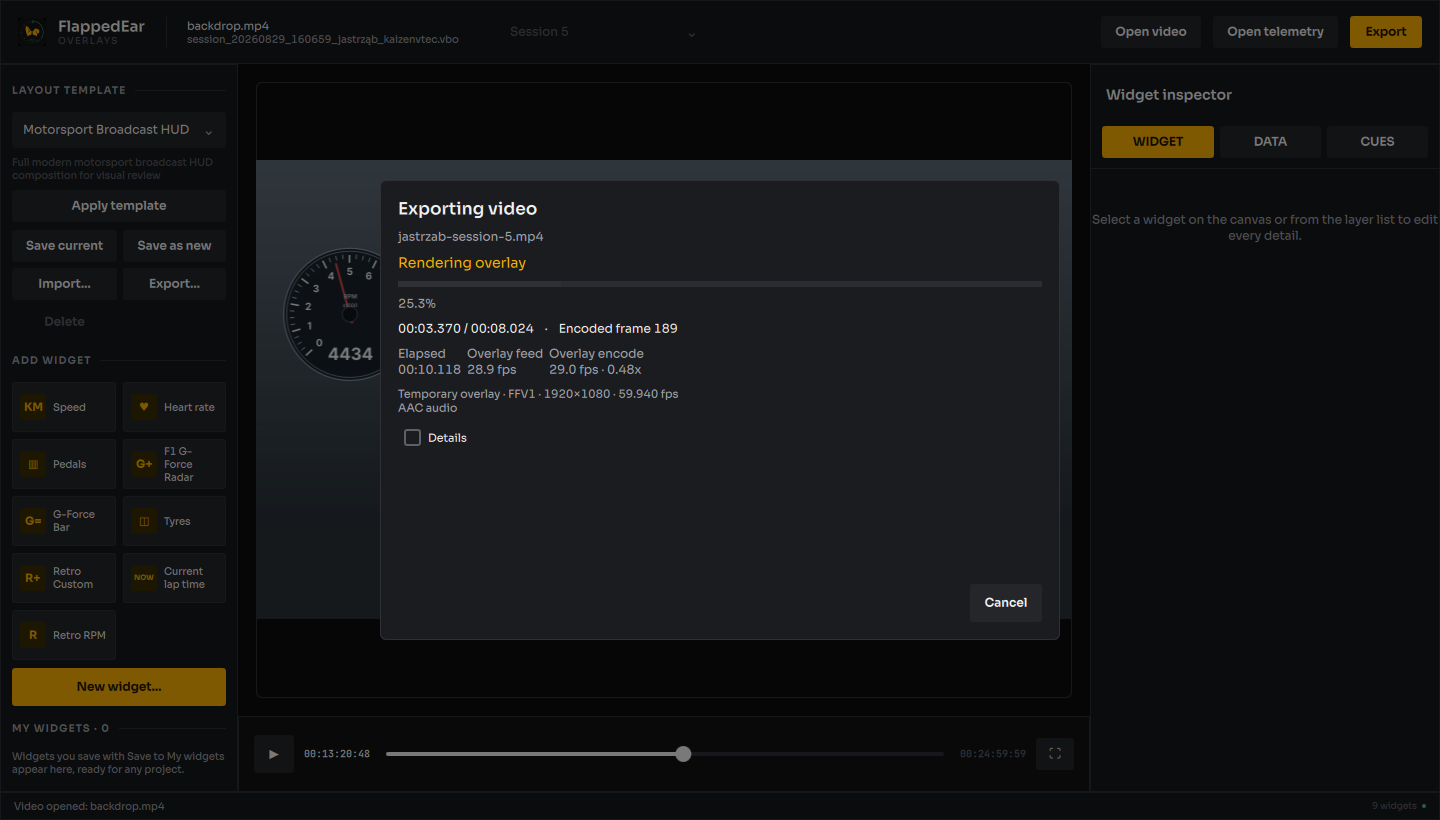
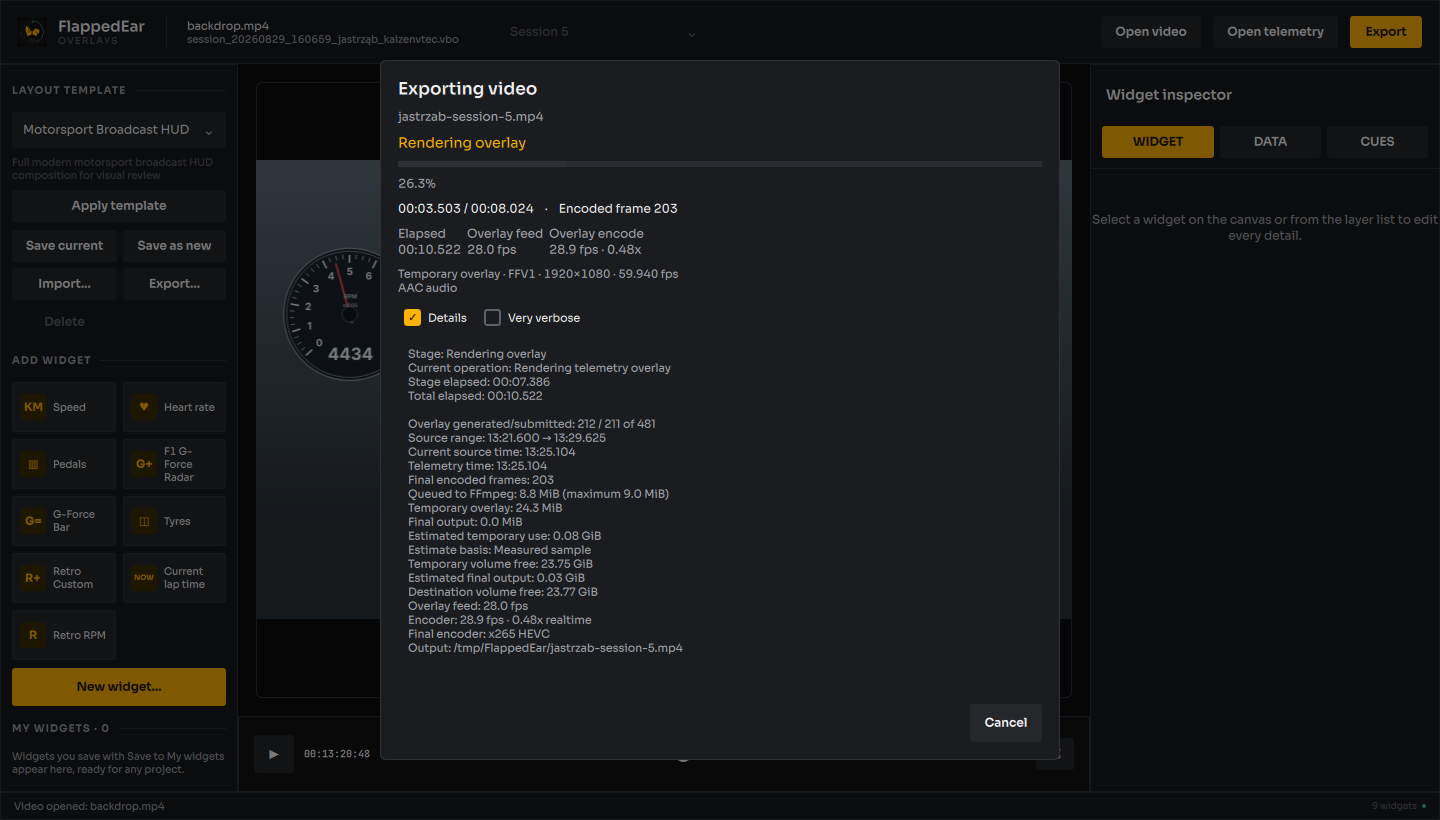
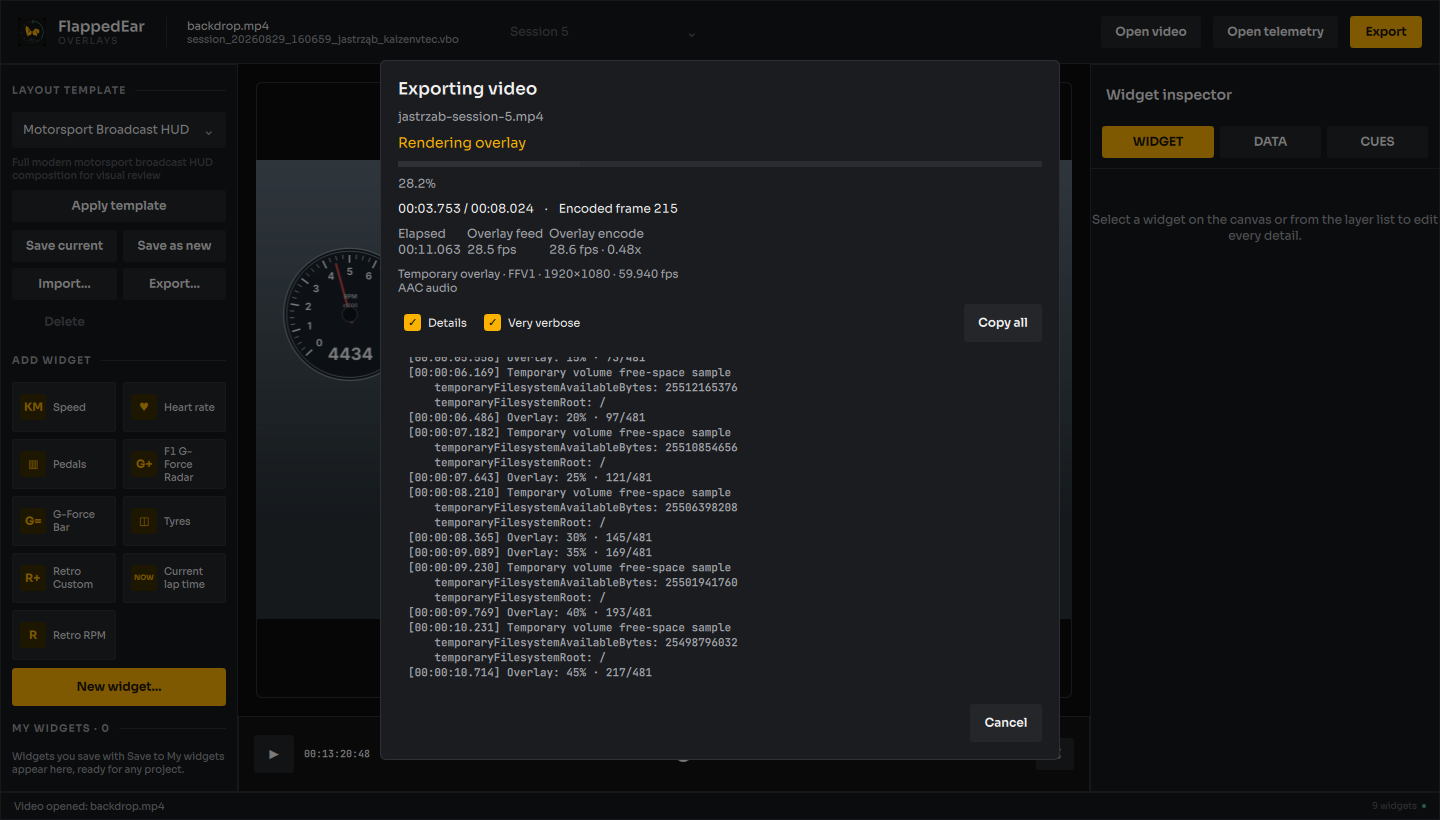
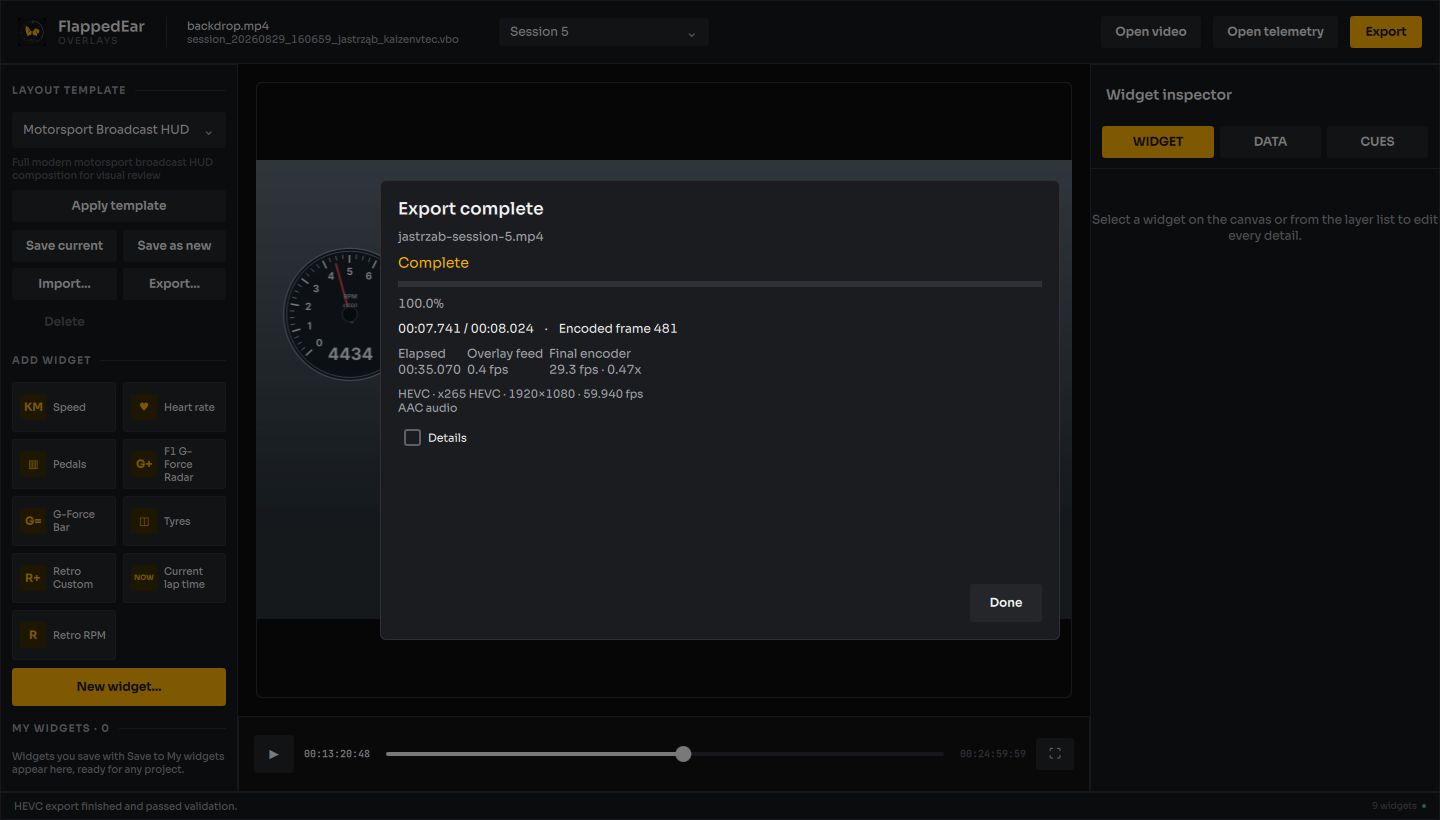
The progress window ends with one of: Export complete, Export completed with warning, Export failed or Export cancelled. Completed with warning means the file was written but a few frames are missing at the very end; check the result before using it.
Every export writes a log file, kept even when the export fails or is cancelled. The ten most recent logs are kept; see Where files are stored.
What the exported file contains
- H.265/HEVC video in an MP4 container, at a constant frame rate equal to the chosen rate.
- The number of frames is exactly the selected range: OUT − IN + 1 frames. An export that completed with warning may be up to 10 frames short at the end.
- AAC audio when enabled and present in the selected range. Audio comes from the main video only.
- The run's additional videos, placed by the layout chosen in the DATA tab. Each one shows from its first frame inside the range to its last; elsewhere the main video shows through. Widgets are drawn on top of every video. The picture-in-picture settings and the camera cuts are exported exactly as the preview shows them.
Disk space
Before starting, the application estimates the space needed for the temporary overlay file and for the final video, and keeps an extra 2 GiB free. If there is not enough space, the export does not start and the message states the estimate and the available space. Free space is checked during the export, and the export stops before the disk fills up. Temporary files are written to the system's temporary folder; the final file is first written next to the chosen output.
Sources that cannot be exported
These sources can be opened and edited, but export is refused with an explanation:
| Source | Message begins with |
|---|---|
| HDR (HLG, PQ) or Log colour, or a file that carries HDR metadata or BT.2020 colour without a known transfer (shown as "Possible HDR (unverified)") | … source detected. Color-managed HDR/Log preservation is not yet supported |
| Rotation metadata (for example phone video recorded upright) | Export does not yet support videos with rotation metadata. |
| Non-square pixels | Export does not yet support non-square pixel aspect ratio |
| Unknown bit depth | Source bit depth is unknown … |
| Bit depth other than 8 or 10 (for example 12-bit) | …-bit source preservation is not supported by the current HEVC export policy. |
| Chapters of one recording that differ in codec, size, frame rate, colour or audio | Chapter … has a different … from the first chapter, so the chapters cannot be exported as one video. |
| A recording with a missing or changed chapter | Some chapters of this recording are missing or changed. |
| An additional video that is still loading, missing, changed since the project was saved, or unreadable | The additional video "…" … |
| An additional video with HDR or Log colour | The additional video … is …. Export does not yet convert HDR or Log colour. |
To export such material, convert it first with another tool to a single SDR, 8- or 10-bit, unrotated MP4 or MOV file.
A BetterDriver video opened from the header button (see BetterDriver video) exports as one video at the first clip's size: clips of other sizes or frame rates are fitted into it, and the short gaps between clips are black and silent. A range late in a long session takes longer, because the export reads the video from its start.
A GoPro recording opened as chapters exports as one video: the range, timecodes and telemetry run across the chapter files, and none of them can be chosen as the output file. An additional video cannot be chosen as the output file either.
A video trimmed by another tool without re-encoding can be exported. Such a file still holds a few frames from before the cut that players never show; the export counts and uses only the frames that are shown.
Other export errors are listed in Troubleshooting.