Layout templates
A template is a complete overlay arrangement: widgets, positions, channel bindings, styles, cues and groups. Use templates to start quickly and to reuse a layout across projects.
Built-in templates
There are two built-in templates. A new project starts with Motorsport Broadcast HUD. Built-in templates cannot be changed or deleted, but you can apply one and save the result as your own.
| Template | Description | Widgets |
|---|---|---|
| Motorsport Broadcast HUD | Full modern motorsport broadcast HUD composition for visual review | Retro RPM, Speed, Pedals, three Retro Custom tiles (OIL, ATF, COOLANT), Heart rate, F1 G-Force Radar, G-Force Bar |
| Tech HUD | Bottom-strip HUD over the bonnet in the Tech style (KAN-193) | Retro RPM with speed inside, Current lap time, Pedals, three Retro Custom rows (OIL, ATF, COOLANT) with range bars, Tyres, Steering wheel (the same bottom row; it is hidden when the recording has no steering angle), Heart rate (top right), Track map (top left; hidden when the recording has no GPS), F1 G-Force Radar and G-Force Bar (bottom right), all in the Tech style |
In the Tech HUD the OIL, ATF and COOLANT rows have these ranges, chosen as starting points rather than from your car's manual: OIL 60–150 °C, normal 90–125, warning at 128; ATF 40–140 °C, normal 70–110, warning at 118; COOLANT 60–120 °C, normal 85–104, warning at 105. Change them under the row's Minimum, Maximum, Normal from, Normal to and Warning at.
In both templates the OIL, ATF and COOLANT widgets read RaceChrono's OBD channels engine_oil_temp-obd, gearbox_temp-obd and coolant_temp-obd. With another logger they show — until you select your own channel in Source channel. The Motorsport Broadcast HUD has no lap timer: add Current lap time from the widget list if you want one.
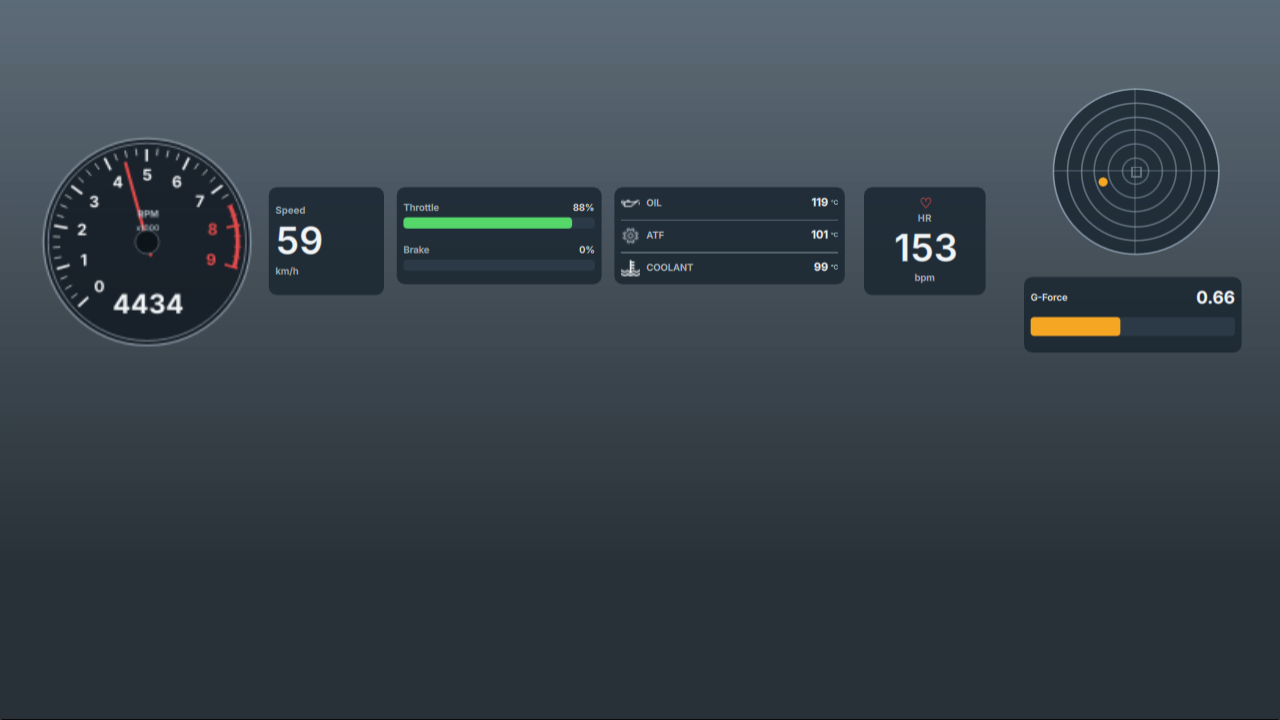
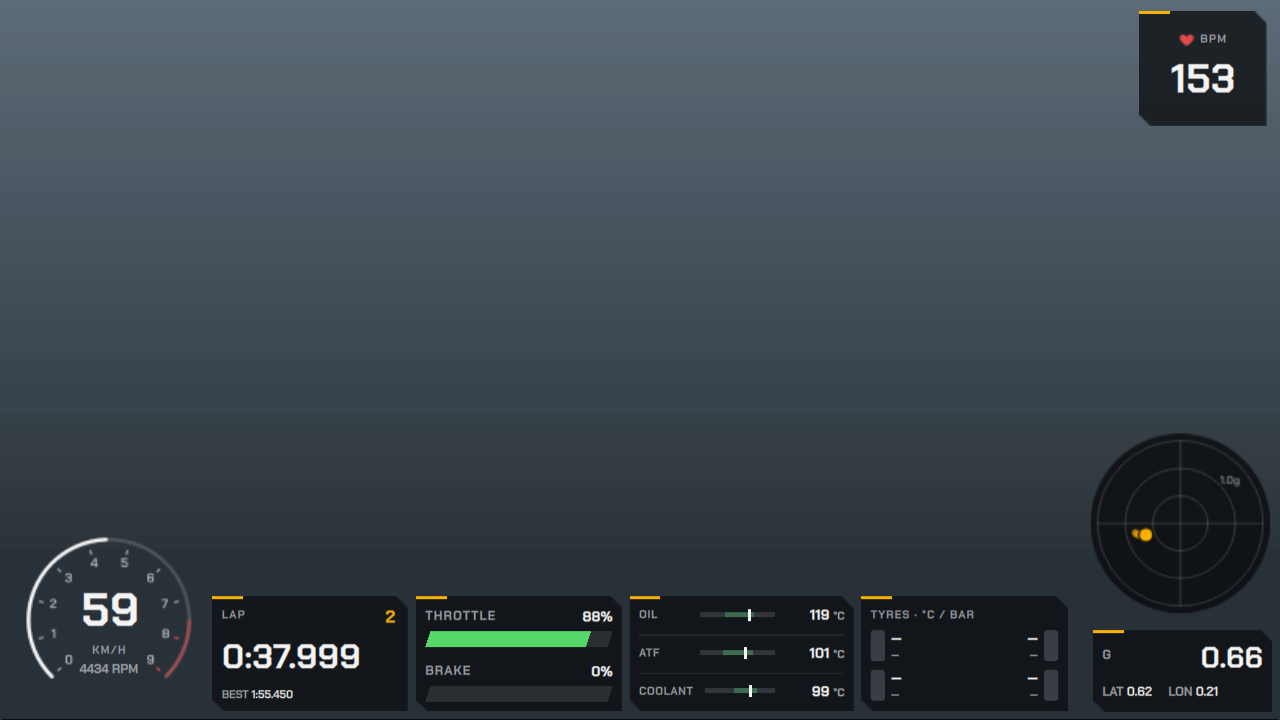
Earlier versions had nine more built-in templates (Track Day, Minimal, Broadcast, Performance, Circuit Pro, Endurance, Drag Strip, Clean HUD and 2000s Grand Prix). They were removed with the widgets they used. A custom template or project saved from one of them still opens, without the removed widgets; see Removed widgets.
Applying a template
- In the left sidebar under Layout template, choose a template from the list. Its description appears below the list. Choosing does not change the scene yet.
- Click Apply template.
Apply template replaces every widget in the current scene. It does not merge, and there is no undo. Save your own layout first if you want to keep it.
Saving your own templates
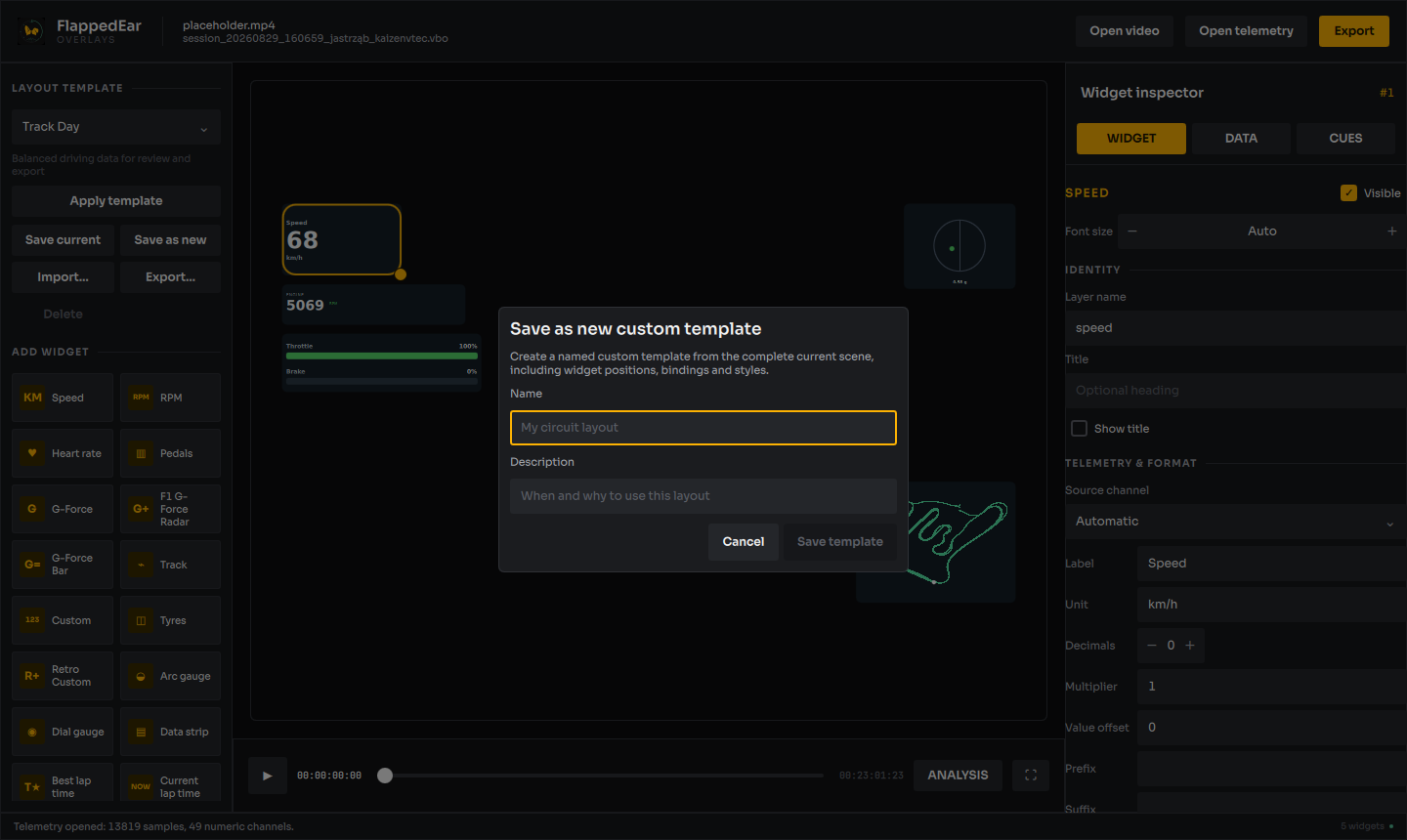
- Save as new stores the complete current scene as a new custom template. Enter a Name (required) and an optional Description, then click Save template. The scene needs at least one widget.
- Save current overwrites the custom template you applied (or just created) with the current scene, keeping its name and description. If the active template is built-in, or you have only selected a template without applying it, Save current opens Save as new instead.
- Delete removes the selected custom template immediately, without confirmation. Built-in templates cannot be deleted.
Up to 128 custom templates can be stored. They are kept separately from projects, in the application's settings folder (see Where files are stored), and are available in every project.
Sharing templates
- Export… writes the selected template, built-in or custom, to a
.fettemplatefile. - Import… reads a
.fettemplate(or.json) file and adds it to your custom templates. Files larger than 2 MiB, or containing unknown widget types, are rejected. Widgets of removed types are left out of the imported template.
If an import or export fails, a red message under Layout template says why: the file could not be read or written, it is not a template, or it uses an unsupported widget. The message clears after the next successful import, export or save.
If custom templates cannot be loaded
If the template store is damaged or too large, a red message appears under Layout template (for example Custom templates could not be loaded from …). The file is left untouched and saving templates is disabled, so nothing is overwritten. Built-in templates remain usable, and importing is disabled too. Restore or move the damaged layout-templates.json aside, then click Reload templates, shown under the message while the store cannot be read; see Troubleshooting.