Widget editor
The widget editor builds your own widgets from simple elements: text, live values, bars, lap times and shapes. Keep the ones you like in My widgets and add them to any project.
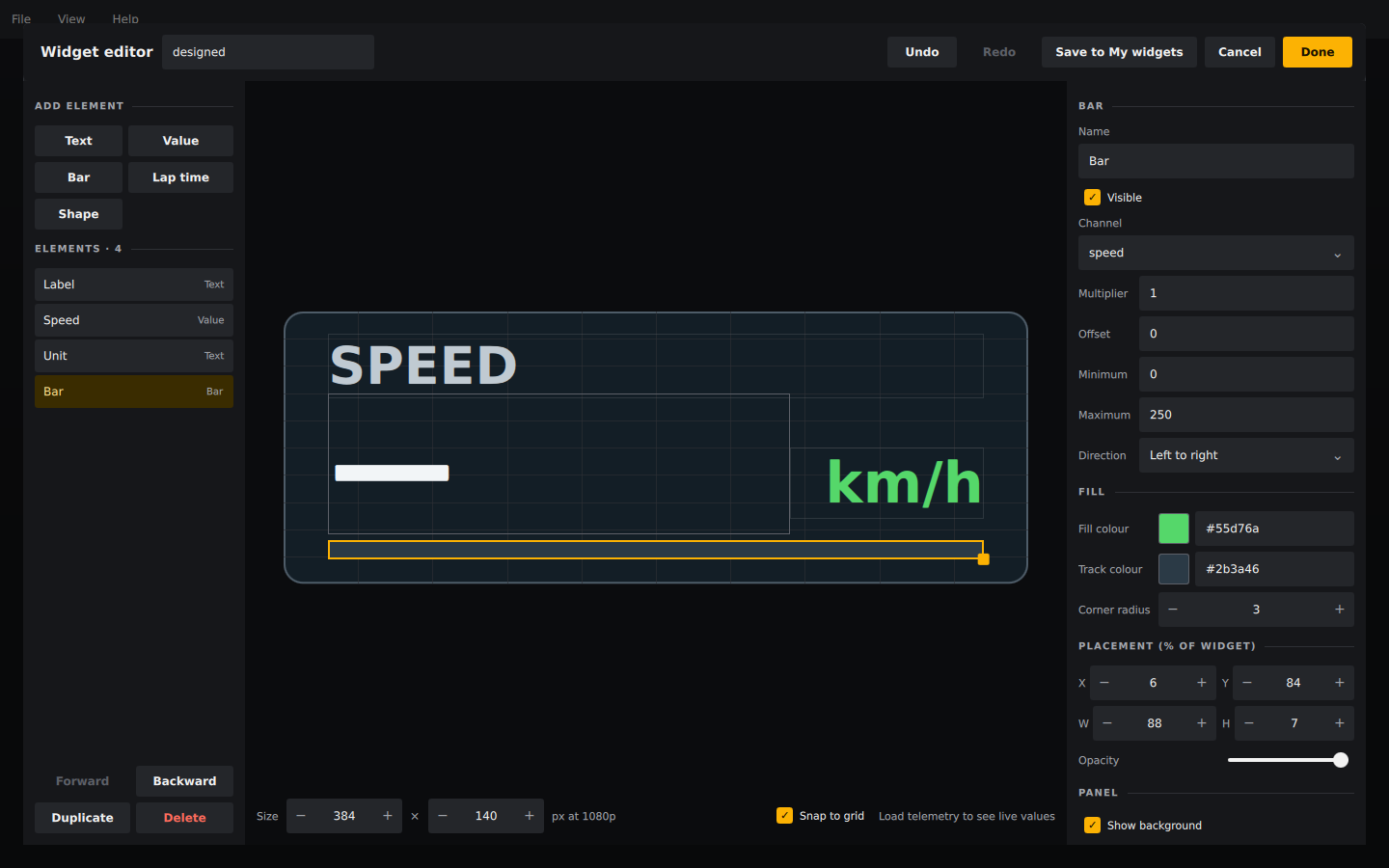
Designing a new widget
- Choose Widget › New Widget… (⇧⌘N), or click New widget… under Add widget in the left sidebar. A designed widget named My widget is added to the scene and the editor opens.
- Add elements with the buttons under Add element, or select one in the Elements list or on the canvas.
- Drag an element on the canvas to move it, and drag its amber corner handle to resize it. With Snap to grid on, positions and sizes snap to 2 % of the widget. The arrow keys nudge the selected element by 1 %.
- Set the element's details on the right.
- Click Done.
Every change shows at once in the editor and in the preview behind it. Cancel puts the widget back exactly as it was when the editor opened, size included. Undo and Redo (Ctrl/Cmd+Z, Ctrl/Cmd+Shift+Z) step through changes to the elements made since the editor opened. Delete or Backspace removes the selected element; while the editor is open these keys never delete the widget itself.
To change a designed widget later, select it and choose Widget › Edit Widget Design…, or click Edit design… at the top of the Inspector's WIDGET tab. Its position, scale, rotation, opacity and animation cues are set in the Inspector as for any other widget.
Elements
| Element | Shows | Settings |
|---|---|---|
| Text | Fixed text, such as a label or a driver name | Text, colour, size, alignment, bold |
| Value | A telemetry channel at the playhead | Channel, decimals, multiplier, offset, prefix, suffix, text when there is no data, colour, size, alignment, bold |
| Bar | A channel as a filled bar between a minimum and a maximum | Channel, multiplier, offset, minimum, maximum, direction (left to right or bottom to top), fill and track colours, corner radius |
| Lap time | Current, best or last lap time, live delta to the best lap, last lap's delta to the best, current or best lap number | What it shows, decimals, prefix, suffix, text when there is no data, colour; deltas can be coloured by gain or loss |
| Shape | A filled rectangle, for panels, stripes and separators | Colour, corner radius |
- Every element has a name (shown in the list), Visible, a placement in percent of the widget (X, Y, W, H) and an opacity. Elements later in the list are drawn on top; Forward and Backward change the order.
- Text size is a fraction of the element's height. Text that is too wide for its element is made smaller to fit.
- The Channel list starts with the recognised channels (speed, RPM, throttle, brake, heart rate, lateral and longitudinal G), then the loaded file's channel names. Values are read and smoothed exactly as in the other widgets (see How widgets read telemetry): no data shows the element's no data text, an em dash
—by default, and an empty bar. - To show mph from a km/h speed channel, set Multiplier to
0.621371and the suffix or a text element tomph. - Lap time elements use the same lap timing as the lap tiles (see Widget catalog). Before the first start-line crossing they show the no data text.
- The Panel section sets the widget's background, border and corner radius; the font family comes from the Inspector.
- The size fields under the canvas set the widget's size in pixels of a 1920×1080 frame. A widget holds at most 64 elements.
My widgets
My widgets keeps widgets for reuse in every project. It holds designed widgets and also styled built-in widgets, for example a Speed widget in your colours.
- Save to My widgets (in the editor's header, or in the Inspector's WIDGET tab for any widget) stores the widget's type, size and every setting under its layer name. Position, cues and groups stay in the project.
- When the widget came from My widgets, the button reads Update in My widgets and replaces the stored version.
- Click a widget in the sidebar list to add a copy to the scene.
- ⇪ exports it to a
.fetwidgetfile; Import widget… adds one. Files larger than 1 MiB, of an unknown widget type, or with more than 64 elements are rejected, and a red message under My widgets says why. - ✕ deletes it from My widgets immediately, without confirmation. Widgets already in projects are not affected.
Up to 128 widgets can be stored. They are kept in widget-library.json in the application's settings folder (see Where files are stored). If that file cannot be read, a red message appears under My widgets, the file is left untouched and saving is disabled; see Troubleshooting.
A designed widget is saved inside the project and in layout templates like any other widget, so a project or template that uses one opens anywhere, with or without your My widgets list.