Importing video and telemetry
An overlay project needs one video and one telemetry recording. A track-day project from FlappedEar Telemetry holds many recordings, each as its own run.
Video
Use Open video in the header, File › Open Video… (⇧⌘V) or Choose video. The file picker accepts .mp4 and .mov files.
BetterDriver video
A BetterDriver .vbo names its video as a numbered series of clips. Open the telemetry: the clips beside the .vbo are linked by themselves as one timeline placed by the recording, and the sync is set from the recording, so there is nothing to align. The same happens when you open one of the clips with Open video (before or after the telemetry). Any other video you open stays as you chose it. If you opened another video, or relinked later, the header button BetterDriver video (found/total) links the clips again. Short gaps between clips show no picture in the preview. The button is greyed out when no clip is found.
- One ordinary file opens directly.
- Selecting several files, or a single file with a GoPro chapter name, opens the Video chapters review first.
The application reads the video's properties (size, frame rate, codec, bit depth, colour, audio) with ffprobe, so FFmpeg must be installed even before you export; see Installing FFmpeg. Video without GoPro metadata imports normally; only automatic synchronization needs it.
Videos with a variable frame rate, HDR or Log colour, rotation metadata or non-square pixels can be opened, played and edited. Some of them cannot be exported yet; see Sources that cannot be exported.
GoPro chapters
GoPro cameras split long recordings into chapter files. The application recognises GoPro chapter names (for example GX010123.MP4, GX020123.MP4 on HERO6 and later, and GOPR0123.MP4, GP010123.MP4 on older models) and offers them as one recording.
- Open all chapter files of a recording together (1 to 64 files).
- The Video chapters dialog lists each recording group with its chapters, durations, size, codec, frame rate and creation time.
- Check the warnings, reorder chapters with ↑ and ↓ if needed, and click Use this recording.
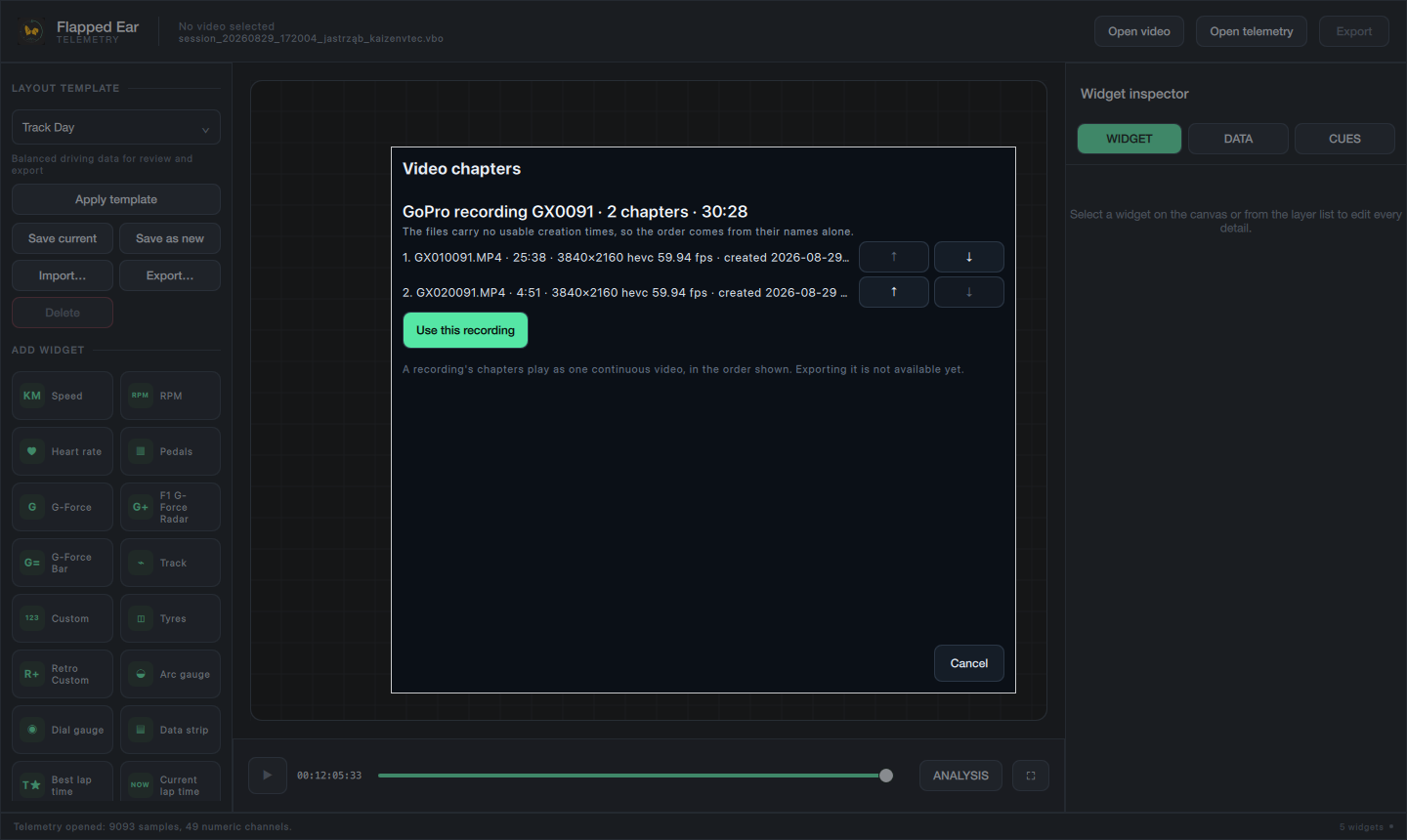
The dialog warns about:
- a missing chapter (the video would jump over it);
- a chapter chosen more than once (the copies are left out);
- an unreadable chapter (the group cannot be used);
- chapters that differ in codec, size or frame rate;
- chapters whose creation times overlap or leave a gap of more than a few seconds;
- files without usable creation times (the order then comes from the names only).
The chapters play as one continuous timeline. A missing or changed chapter plays as a gap, and telemetry time continues across it.
Export covers all chapters as one video. A recording with a missing chapter cannot be exported until its chapters are chosen again.
Automatic synchronization uses only the first chapter's GPS.
Telemetry
Use Open telemetry in the header, File › Open telemetry… (⇧⌘T) or Choose telemetry. Two formats are supported:
| Format | Typical source | Notes |
|---|---|---|
.vbo | RaceChrono Pro VBO export | Includes RaceChrono's calculated lateral and longitudinal G when they are enabled in the export. Verified with RaceChrono Pro 10.2.4. |
.rcz | RaceChrono session archive | Keeps each sensor's original recording rate. One uninterrupted session per file. Contains no calculated G. |
On success the status bar shows Telemetry opened: N samples, M numeric channels., followed by up to three parser warnings. Details of supported content, recognised channels and limits are in Telemetry data.
In an event, Open telemetry… replaces the active run's primary recording; it does not add a run.
Track days
A day at the track usually produces several recordings. FlappedEar Telemetry, the analysis app, gathers them into an event, where each recording is a run, and saves it as a .fetproject file. Open that file here with File › Open project… (⌘O) to make overlays for any run of the day. Overlays no longer imports a day of recordings itself: it is an overlay editor.
Lap exclusions, run names and the other decisions made in FlappedEar Telemetry are kept when you save, and excluded laps do not count as the best lap. Day projects made by earlier versions of this app open as before.
Choosing the run to edit
When an event has more than one run, the header shows a run picker next to the file names. Choose a run to show its telemetry, video and synchronization in the editor; the overlay layout is shared by all runs. The picker is unavailable while a project loads, an export runs, or a question about unsaved changes is open. The Export dialog finds the day's best lap across all runs by itself (see Export).
Limits
| Item | Limit |
|---|---|
| Size of one telemetry file | 128 MiB |
| Runs per event | 64 |
| Recordings per run | 8 |